AR Photo Head
An AR photo booth for the front camera. Guests stand in front of the camera, a 3D model is tracked onto their head, the room behind them can be replaced with your own background, and after a 3, 2, 1 countdown a photo of the whole branded page is taken, with your frame, logo and text in it. There is no score, so every photo counts. Shown here as the Be a Panda! demo, it works on a visitor’s own phone or laptop or on an on-site screen with a camera.
How AR Photo Head Works
Step in Front of the Camera
In the demo, users read the three steps on the start screen, tap Start and allow camera access. The live camera picture appears, mirrored like a mirror.
Wear the 3D Model
As soon as a face is found and the model has loaded, the 3D model sits on the guest’s head and follows it as they move. With a background set, the guest is cut out and placed in front of it.
Hold Still for 3, 2, 1
After the delay you set, or a tap of the photo button, a 3, 2, 1 countdown runs and a photo of the whole page is taken, with your frame, logo and text in it.
Keep the Photo
Every photo counts. The photo goes to the next step, which in the demo shows it with a QR code to save it on a phone and a Download Photo button.
The Be a Panda! Demo
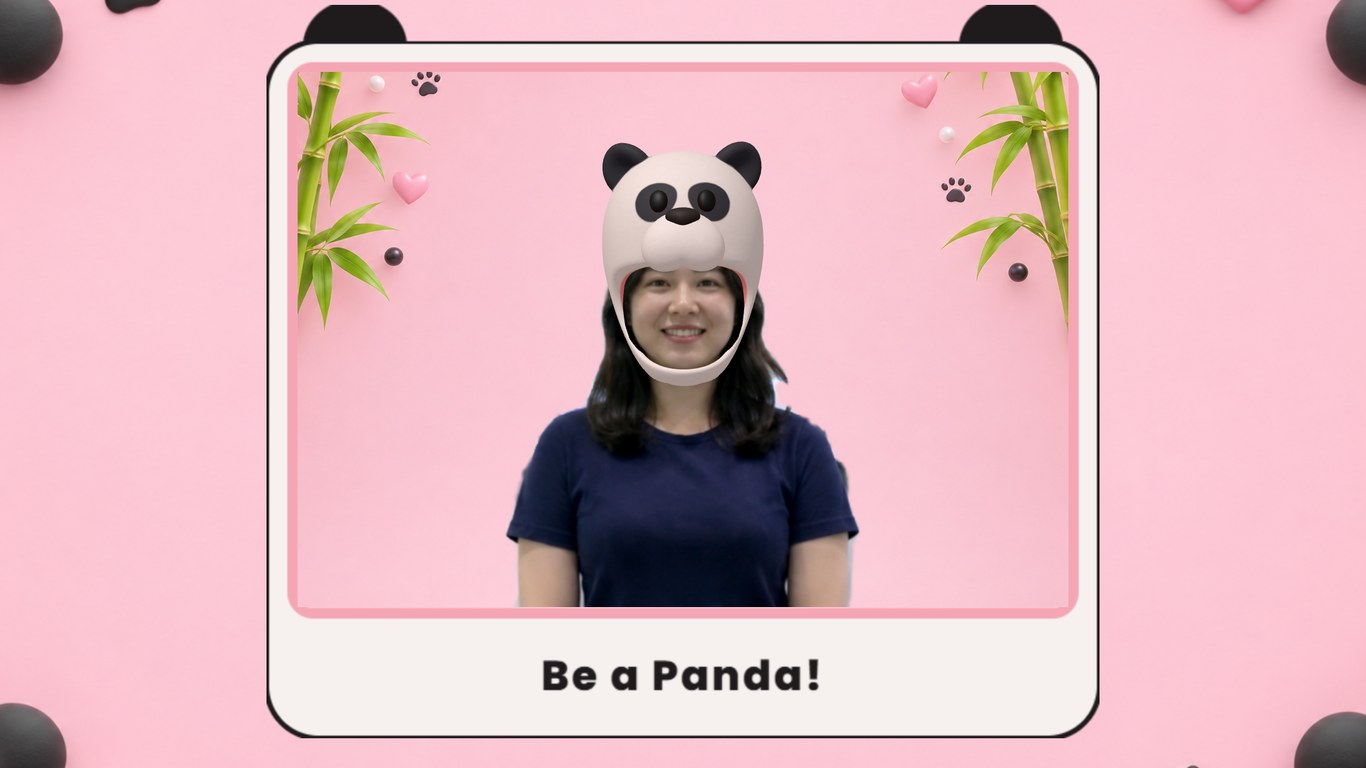
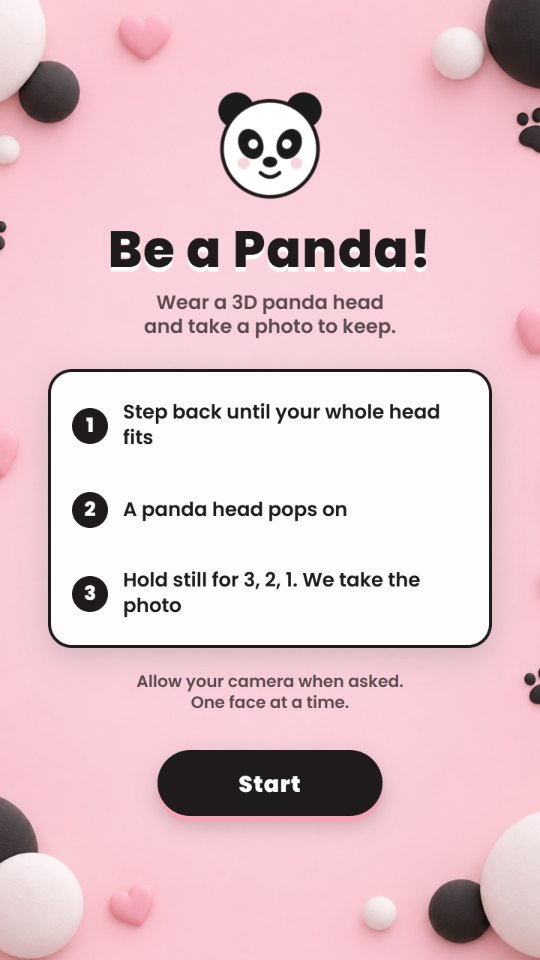
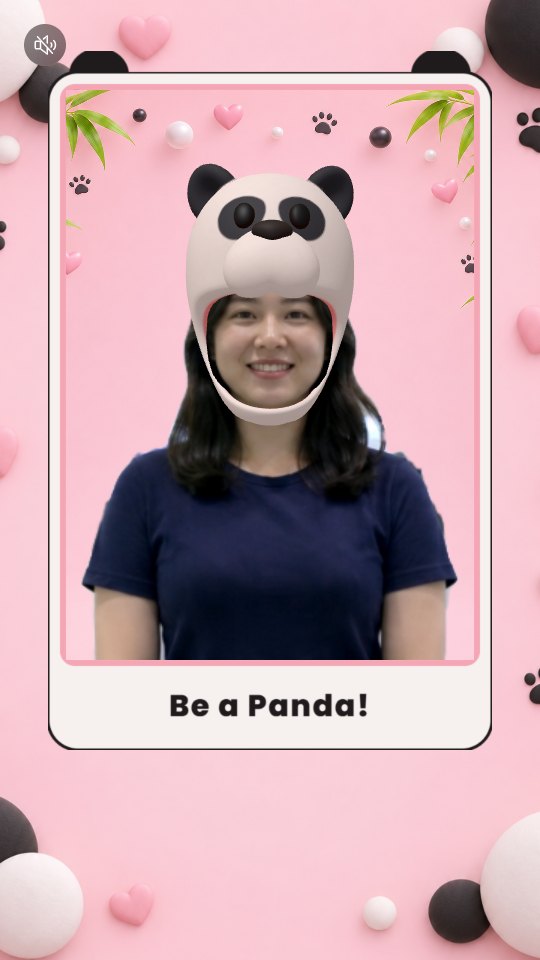
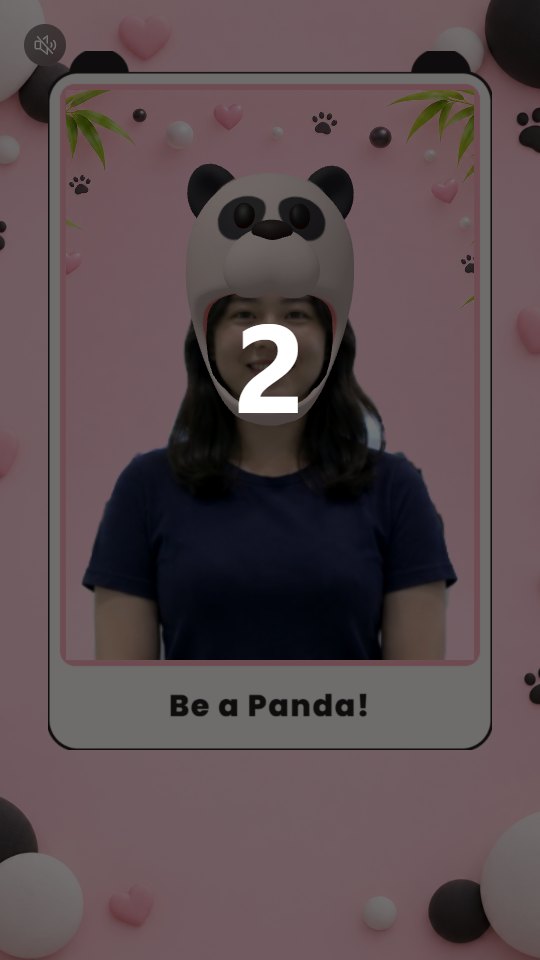
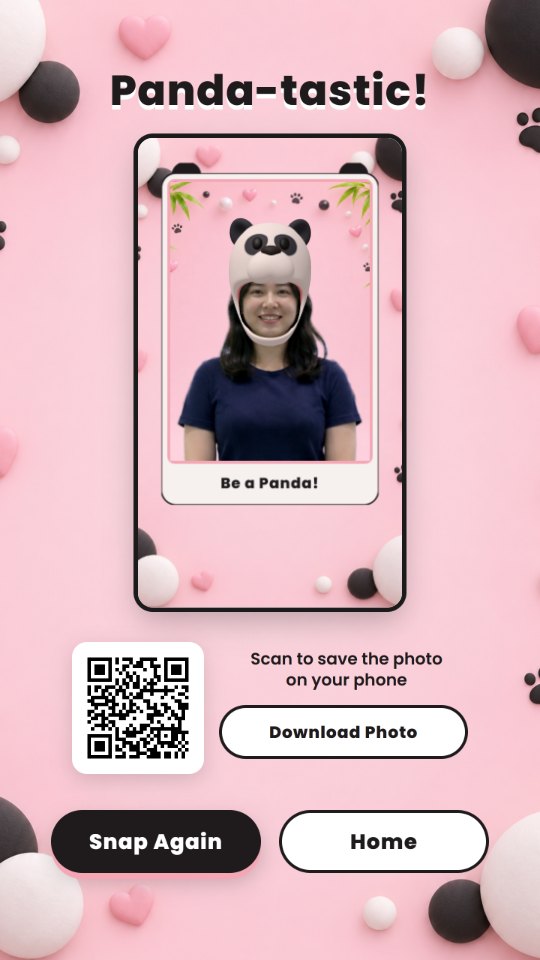
The demo shows AR Photo Head in a pink panda theme with bamboo and paw prints. A start screen titled Be a Panda! sets out three steps. Once the camera finds the guest’s face, a soft white-and-black 3D panda head pops on and follows their head, the room behind them is replaced by the pink panda background, and a photo frame with the caption Be a Panda! sits around them. A 3, 2, 1 countdown runs and the photo is taken. The Panda-tastic! page then shows the photo, with a QR code to save it on a phone, a Download Photo button, and Snap Again and Home. Keep it as it is, or swap in your own 3D model, background, frame and copy.
 9:16
 9:16
 9:16
 9:16
What You Can Customise
What AR Photo Head Can Do for Your Campaign
Give Every Guest a Photo to Keep
Each guest leaves with a branded photo of themselves wearing your 3D model.
Put the Brand in Every Shot
Everything placed on the page, such as a frame, a logo or a line of text, is captured in the photo with the guest, and a replacement background can put them in a themed scene.
Nobody Loses
There is no score and no winner. Every photo counts as a win, so a prize attached to the step reaches every guest who takes one.
Run It on Site or Online
Set it up as a photo booth on a screen with a front camera, or share a link so guests take the photo on their own phone or laptop.
Where Brands Use It
Events
Set up an AR photo booth where guests wear your mascot or headgear and leave with a photo.
Exhibitions
Give visitors a reason to stop at the booth and take a branded photo home.
Shopping Malls
Run a seasonal photo moment, with a themed 3D head and background, for shoppers and families.
Retail Stores
Add a branded souvenir photo to an in-store promotion.
Product Launches
Put a product-themed helmet, hat or mask on every guest for the launch photo.
Roadshows and Pop-Ups
Bring the same photo booth to every campaign location.
Ways to Set It Up
Online Experience
Users take the photo in a web browser on their own device, using its front camera.
On-Site Experience
AR Photo Head runs on a screen with a front camera at an event, exhibition, shopping mall, retail space or activation.
Frequently Asked Questions
AR Photo Head is an AR photo booth. A 3D model is tracked onto the guest’s head, the background can be replaced, and after a 3, 2, 1 countdown a photo of the whole branded page is taken and passed to the next step.
Be a Panda! is the demo shown on this page. Guests wear a 3D panda head in front of a pink panda background and frame, and see their photo on the Panda-tastic! page. Use it as it is, or swap in your own model, background and screens.
AR Head Effect shows a 3D model on the guest’s head live, then moves on, with no photo taken or saved. AR Photo Head can also replace the background, and takes a photo for the guest to keep.
A device with a front camera, such as their own phone or laptop, or an on-site screen with a camera, with camera access allowed. One face carries the model at a time, and anyone else in the frame is photographed without it.
Yes. Upload a GLB or GLTF model up to 200 MB, choose Hat, Helmet, Face Mask or Full Head, use Auto Fit and fine-tune the size, position and rotation. The guest’s real face always shows through, so a model meant to hide the face has to cover it itself.
Yes. Upload a JPG or PNG up to 10 MB and the guest is cut out and placed in front of it, cropped to fill the camera area. In the final photo the edges and hair are usually cut out more cleanly; if that finer cut-out is not ready within 10 seconds, the photo uses the live cut-out. If a device cannot run the cut-out, the real room shows instead and the photo is still taken.
The whole page at that moment: the camera picture with the 3D model, the background and every other element on the page, such as frames, logos and text. The photo button and the countdown are left out.
Either automatically, once a face has been in view for the delay you set, from 0 to 60 seconds, or when the guest taps the photo button. A 3, 2, 1 countdown runs first.
No. There is no score and no leaderboard. Every photo counts as a win, so a prize attached to the step goes to every guest who takes a photo.
The photo is passed to the next step. In the demo, that page shows the photo with a QR code to save it on a phone and a Download Photo button.
No. It runs in a web browser on a secure (https) link, with camera access.
Data collection is optional. Registration, consent and customised questions can be added as steps before or after the photo.
Build and Launch Your AR Photo Head
Upload your 3D model and background, design the page around the camera and give every guest a branded photo to take home with qiksense.