Quiz
A start screen, then one question per screen with single or multiple answers, and images or video where they help. Turn scoring on to award points, set a pass mark to split winners from the rest and send the winners on to a prize. Ideal for product education and campaign trivia.
How the Quiz Works
Start the Quiz
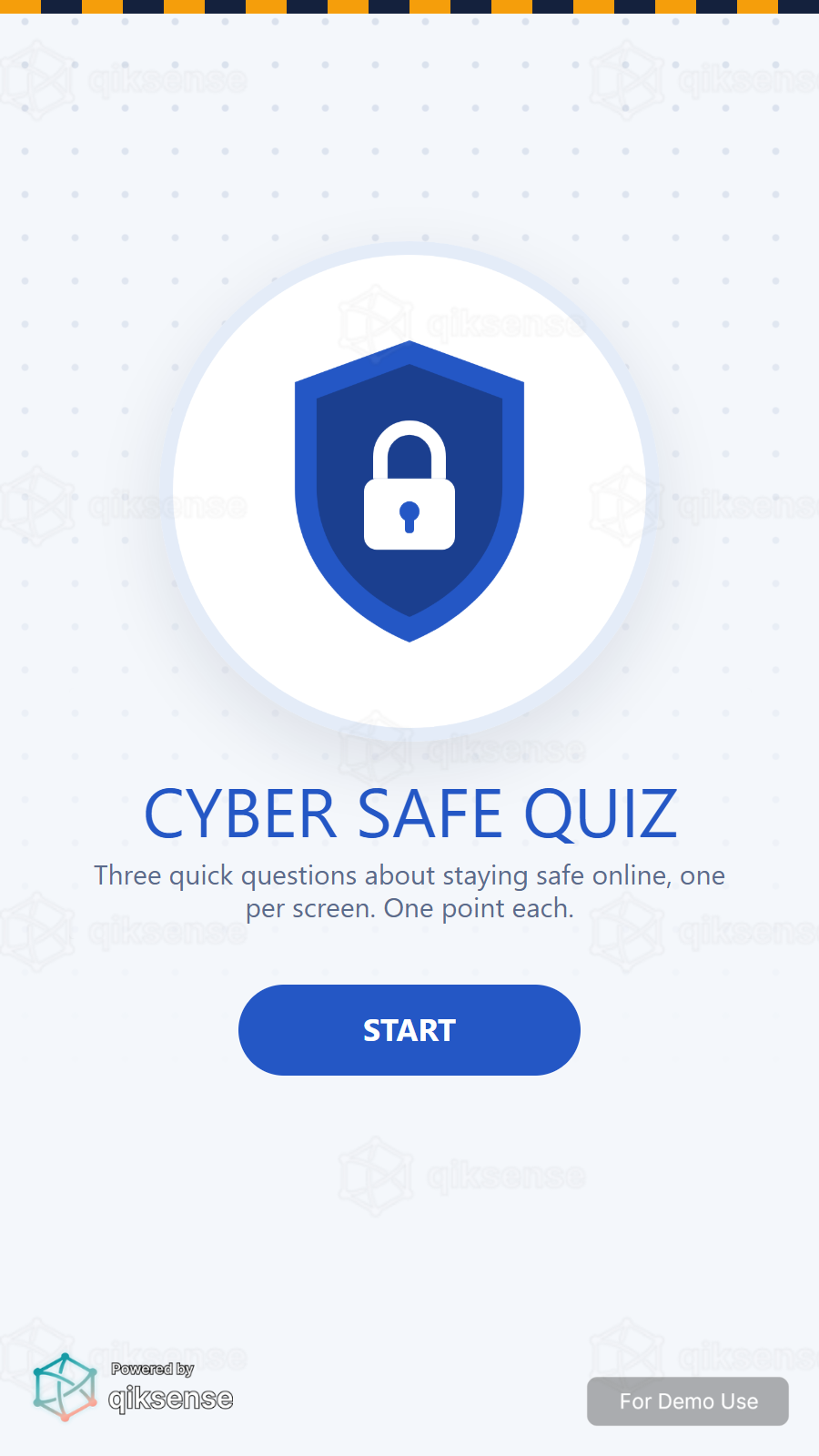
Users tap Start on the quiz cover screen. If a time limit is set, the countdown starts here.
Answer One Question per Screen
Each question has its own screen and backdrop, with single or multiple answers and optional images or video. Users move on with the Next button.
See the Outcome
With scoring on, right answers earn points and the pass score decides the exit. Correct answers can also be revealed on their own screens after each question.
Continue the Journey
Users can join a leaderboard, receive a prize on completion or move to the next campaign step, depending on the setup.
A Closer Look
 9:16
9:16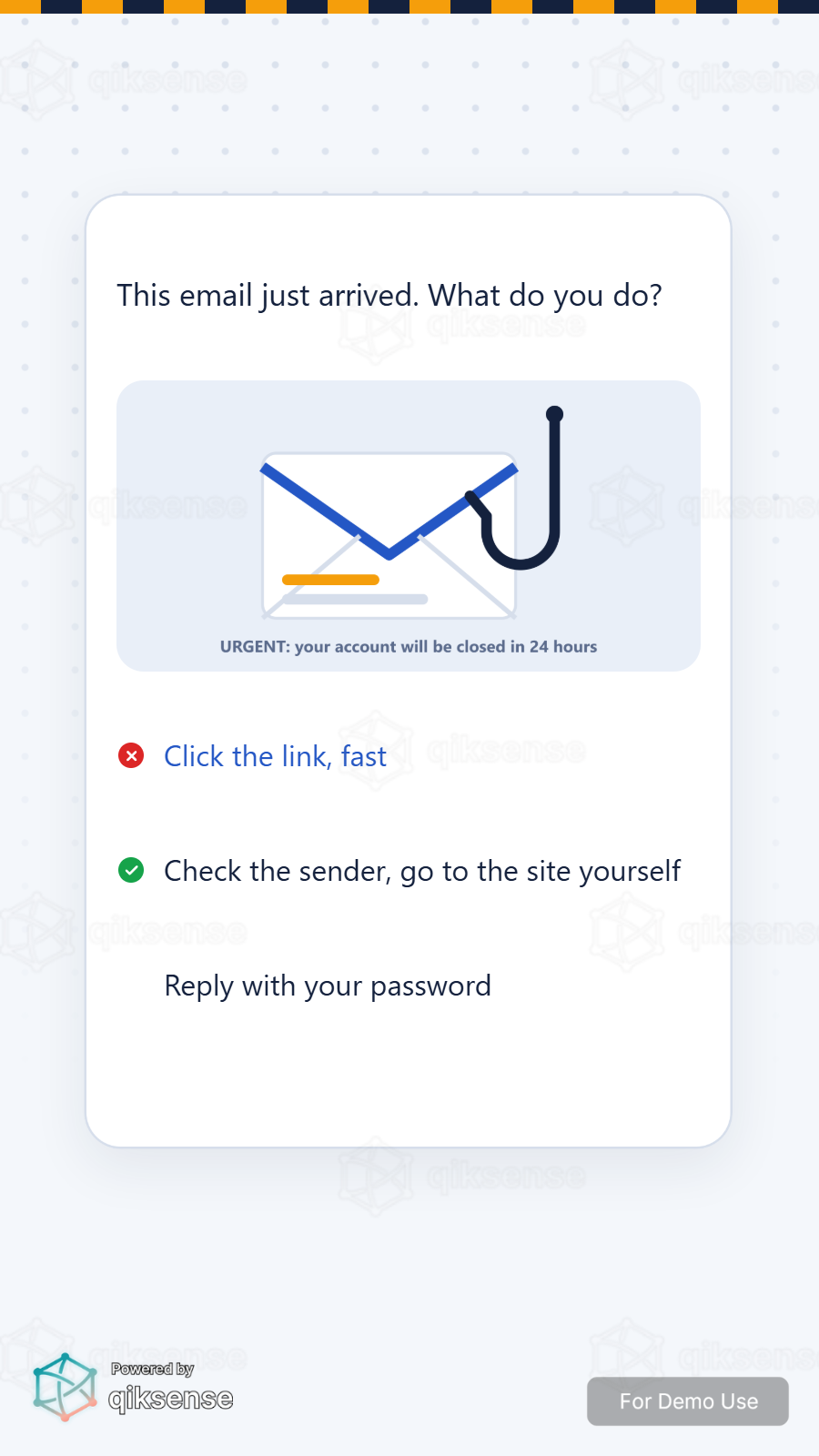 9:16
9:16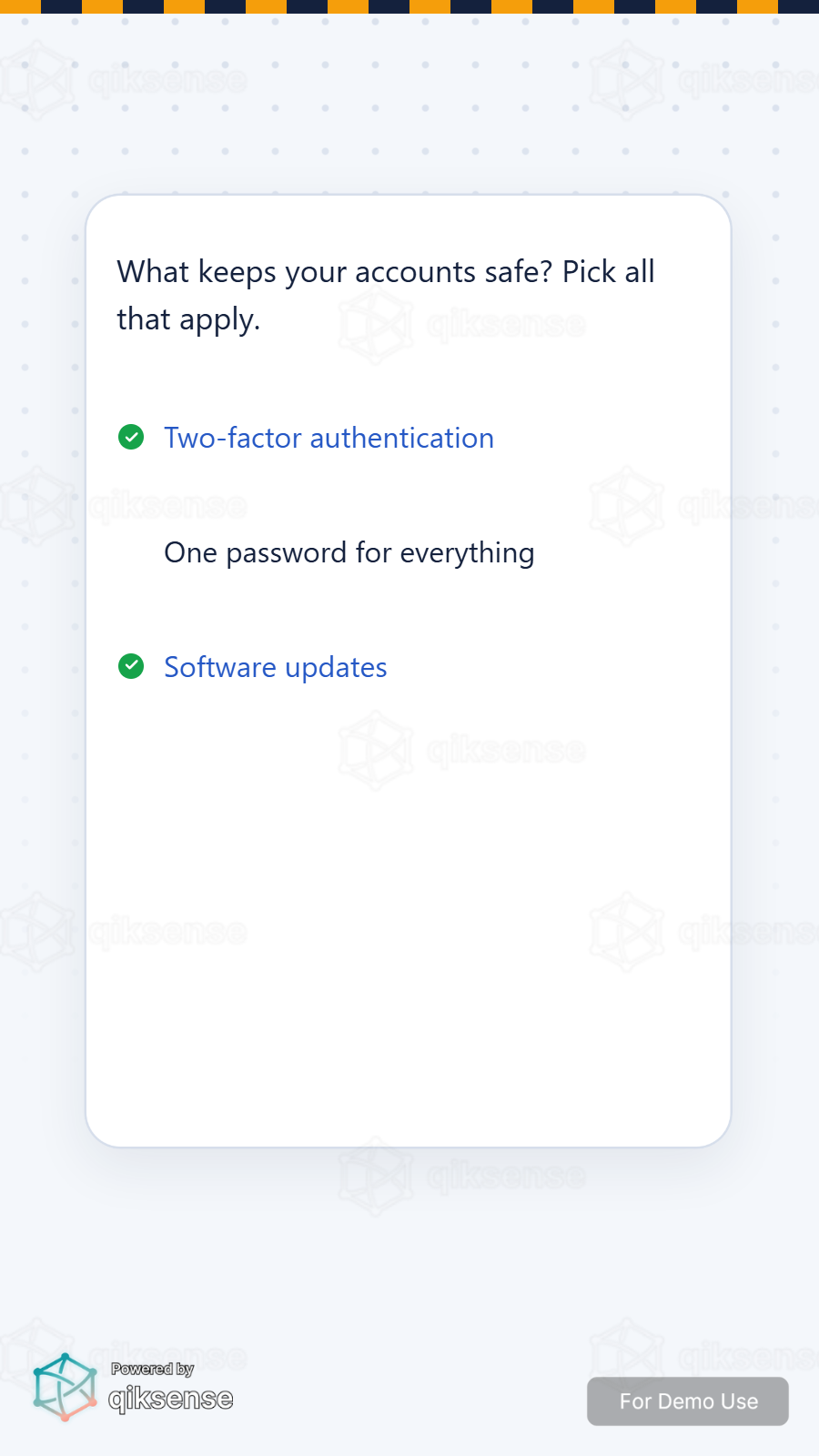 9:16
9:16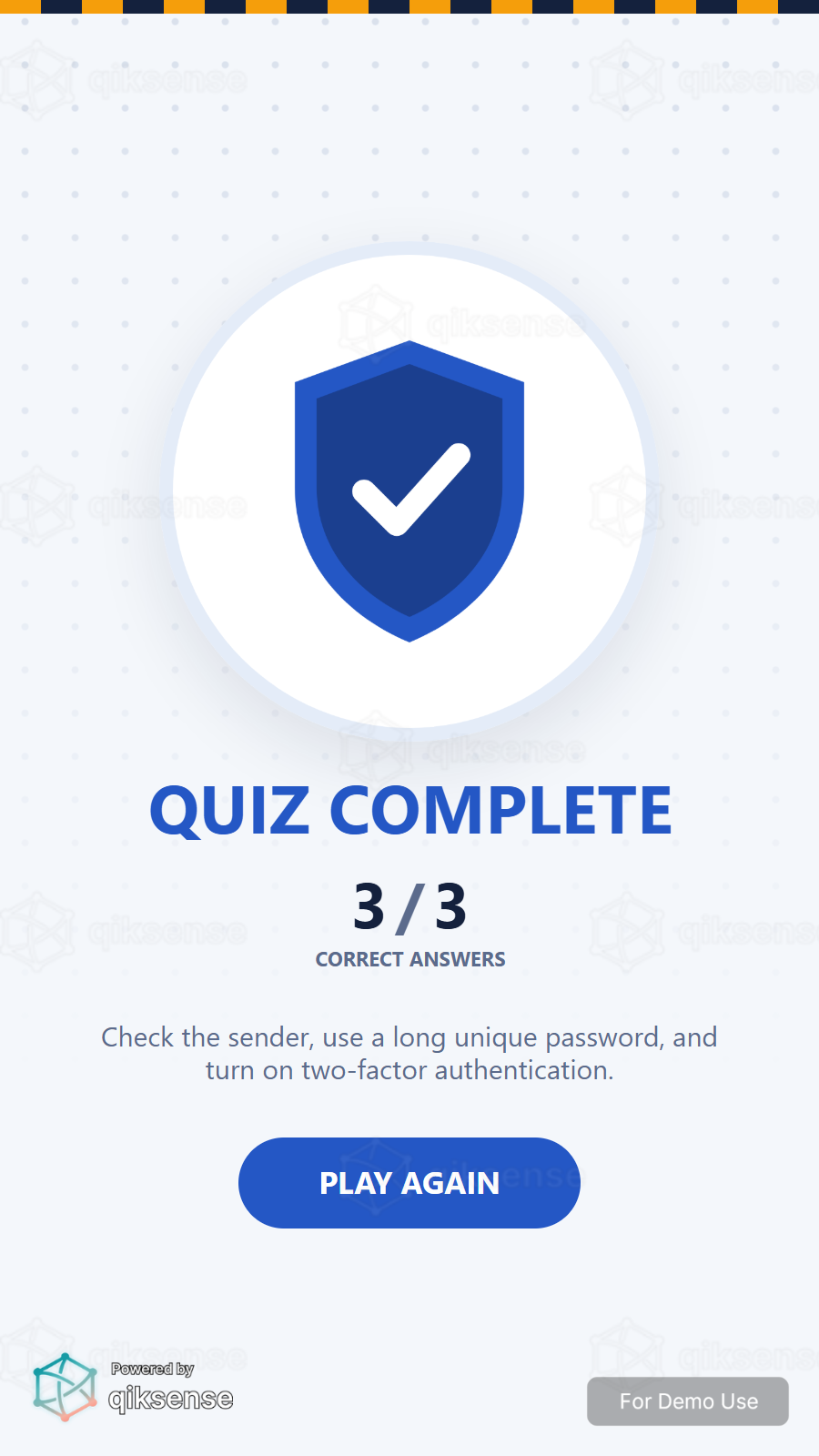 9:16
9:16What You Can Customise
What the Quiz Can Do for Your Campaign
Attract and Engage Users
One question per screen keeps the pace quick, and scoring turns learning into a challenge.
Reinforce Campaign Messaging
Every question is a campaign message: teach the story, then test what landed.
Capture Participation Data
Track participation, completion, scores and every individual answer.
Extend the Engagement
Split winners from the rest with a pass score, rank them on a leaderboard and send the winners on to a prize.
Where Brands Use It
Events
Capture opinions, run personality moments and qualify leads while users are engaged.
Exhibitions
Turn booth conversations into structured, exportable responses.
Shopping Malls
Run shopper polls, preference tests and campaign sign-ups.
Retail Stores
Collect product feedback and route shoppers to recommendations.
Product Launches
Teach the story with questions, then measure what landed.
Roadshows and Pop-Ups
Run the same questions at every stop through a link or QR code.
Ways to Set It Up
Online Experience
Users can access the questions through a web browser on their own device.
On-Site Experience
The experience can be set up on-site at events, retail spaces, exhibitions or activations.
Frequently Asked Questions
Yes. Scoring is off by default; turn it on and each question carries points for a right answer and an optional deduction for a wrong one. Set a pass score to split users between a success and a fail exit, or leave it at zero so everyone passes.
Two answer modes, single answer or multiple answers, laid out one question per screen. Questions can carry images or video, and each screen can have its own backdrop.
Yes. An optional countdown can run across the quiz, and when it reaches zero the quiz submits itself with the answers picked so far.
Yes. With scoring on, results can rank on a leaderboard. A prize set on the quiz goes to everyone who finishes, so to reward winners only, put the prize on a step after the success exit.
Yes. The start screen and every question screen can be styled to the campaign or brand identity, each with its own backdrop, imagery and copy.
Every answer is recorded against the campaign, along with participation, completion and scores. The data can be exported.
Teach the Message, Then Test It
Write the questions, set the scoring and pass mark, and connect results to leaderboards and prizes with qiksense.