AI Photobooth
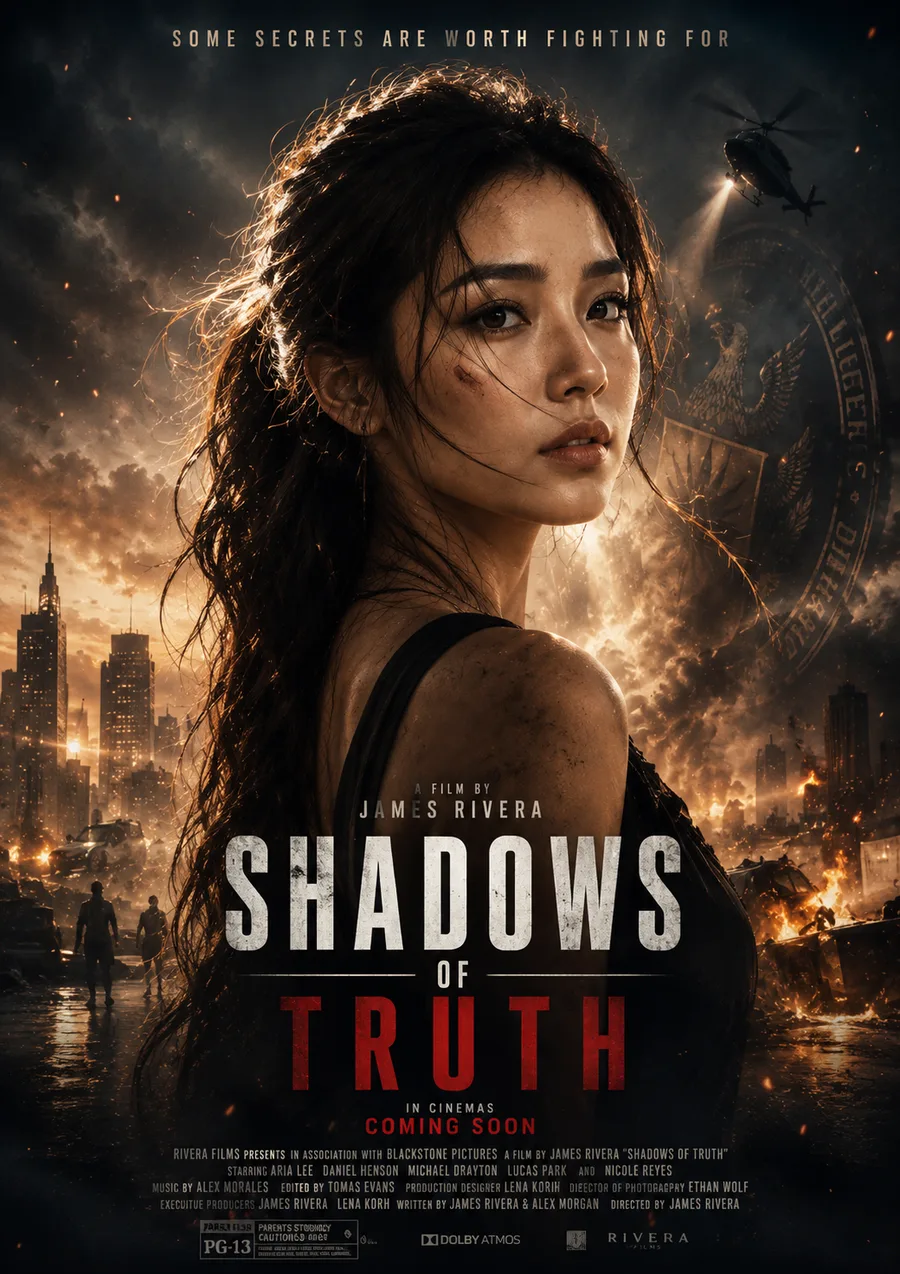
Customize your own AI photo style by writing prompts that define the final output, such as art style, themed portraits, character looks or visual treatments. This works well for events and exhibitions where users can create personalized images to share.
How the AI Photobooth Works
Start the Experience
Guests tap Start on the screen or press a physical or tactile button. The photobooth then guides them into the photo capture sequence.
Strike a Pose
A countdown starts automatically, giving guests time to get ready, position themselves and strike a pose before the photo is captured.
AI Transforms the Photo
A loading screen appears while AI transforms the captured photo into the selected visual style. Once processing is complete, the final image is displayed.
Print or Receive the Digital Copy
Guests can print their photo, scan a QR code to receive the digital copy, or tap the download button directly, depending on the campaign setup.
Different Ways to Build Your Campaign
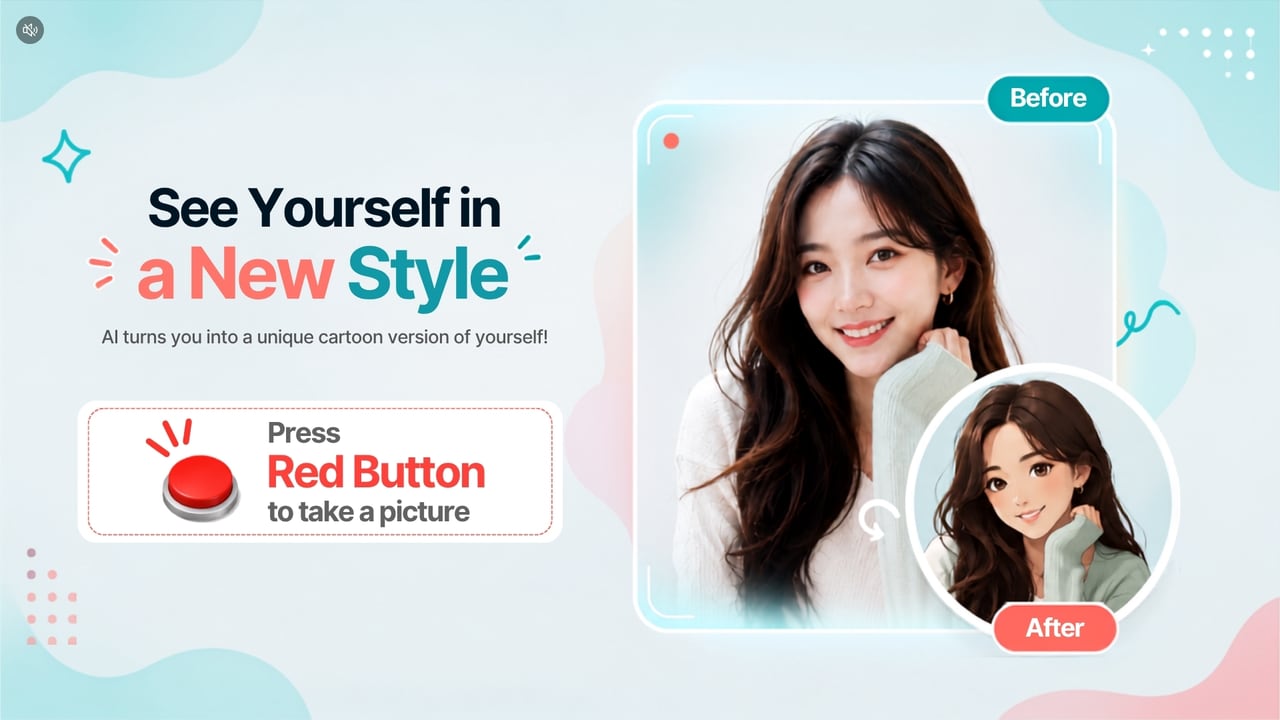
Button-Activated
Guests press a physical button to start, instead of tapping the screen.
Not Available for Demo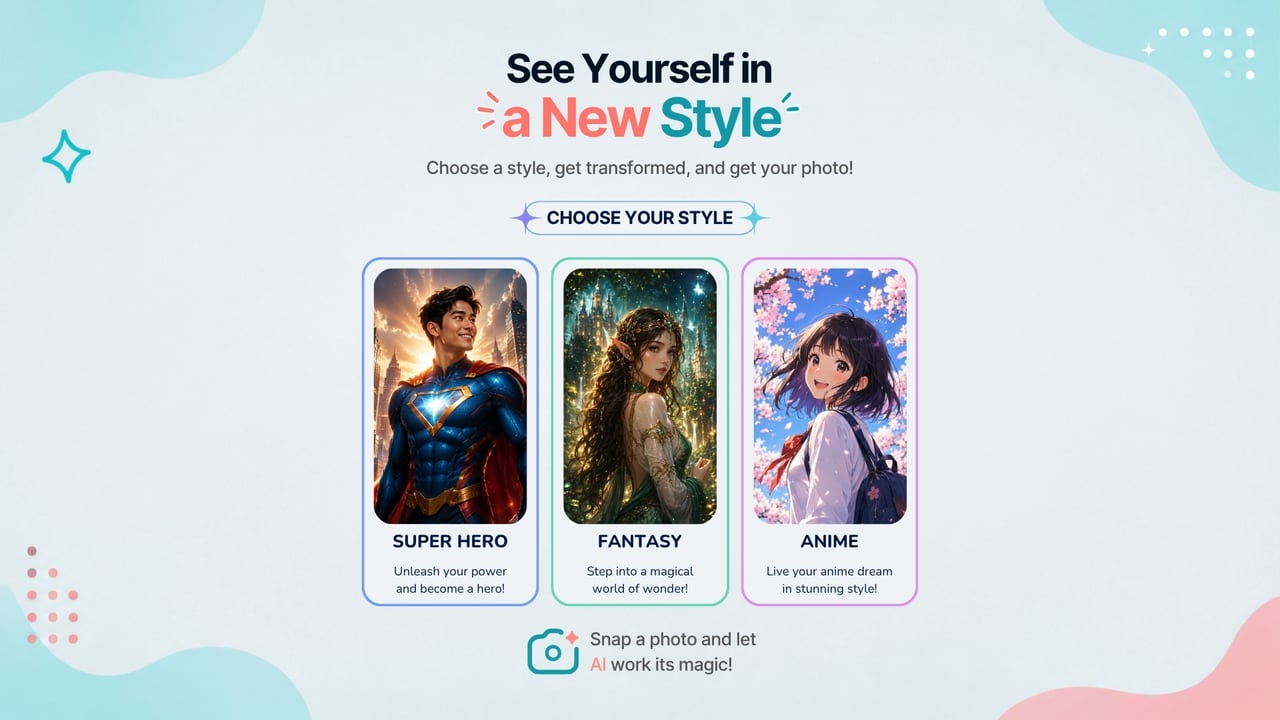
Works for Solo and Group Photos
Play it solo or together. One guest gets a portrait of their own, or friends and family step in for a group photo.
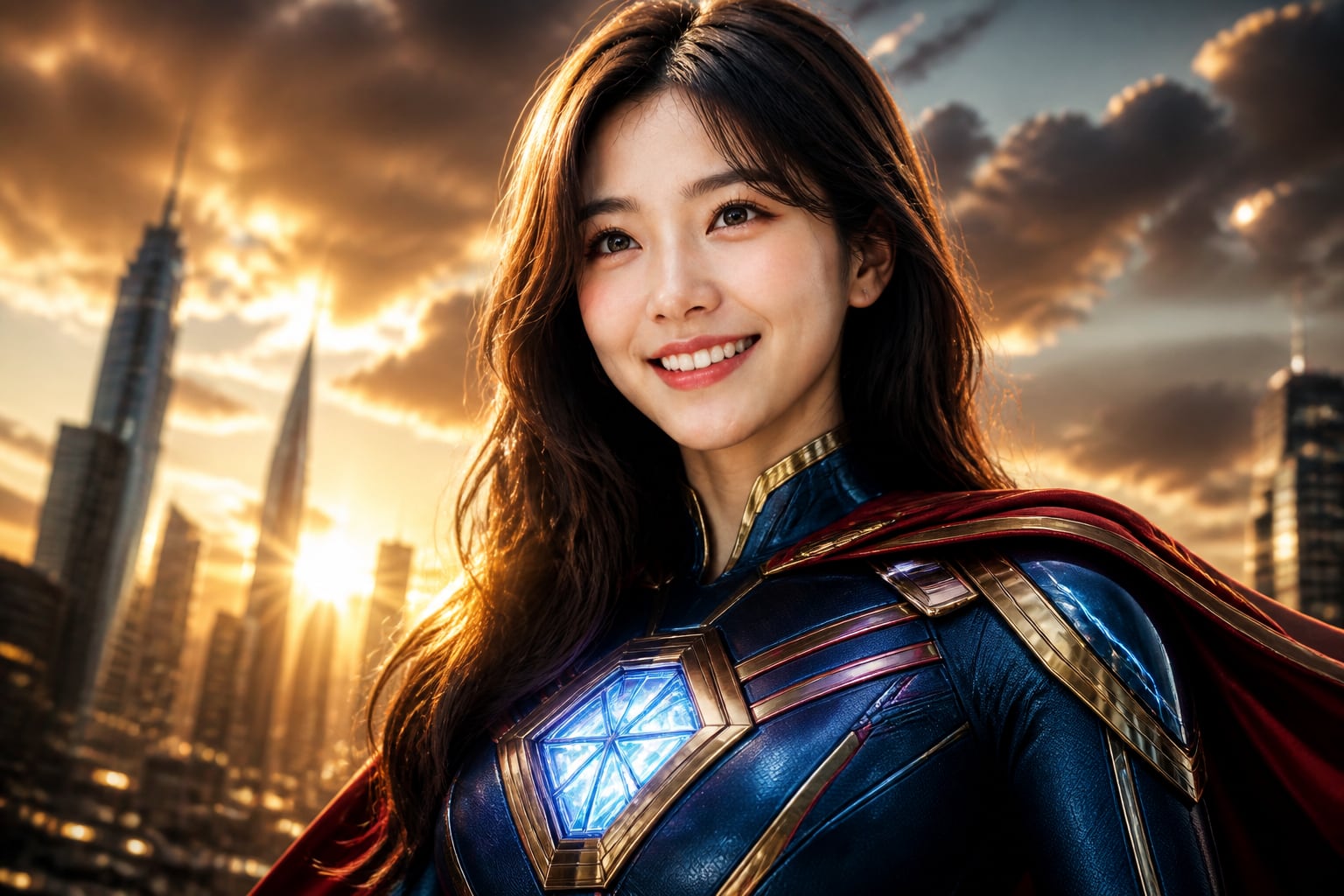
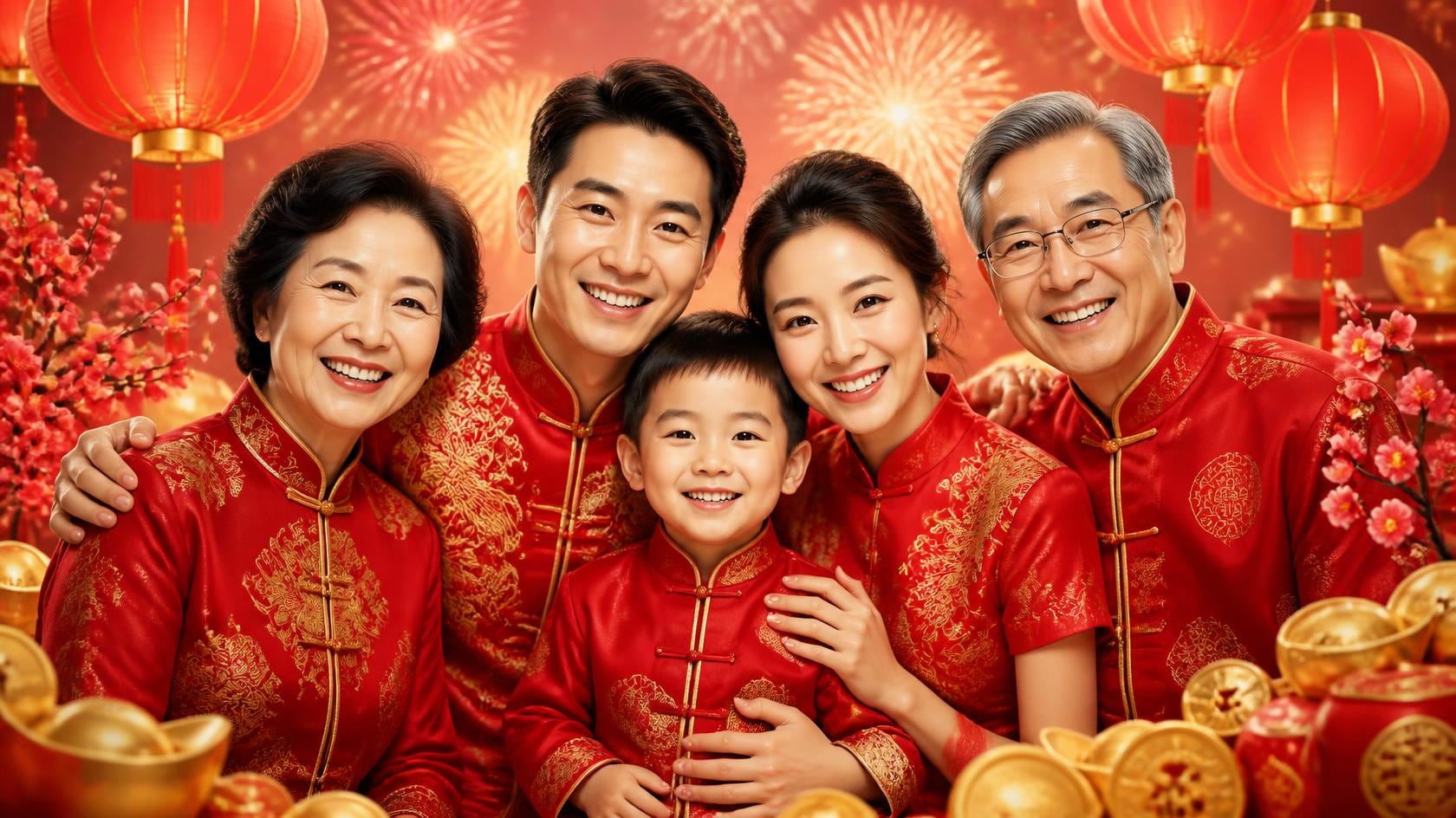
Ways You Can Use the AI Photobooth
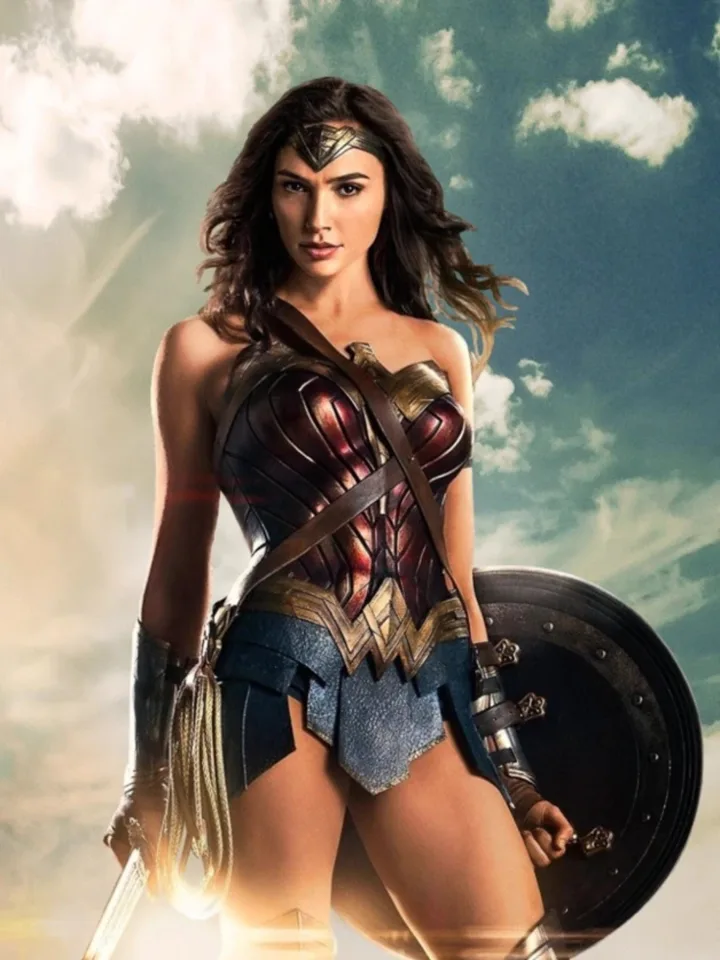
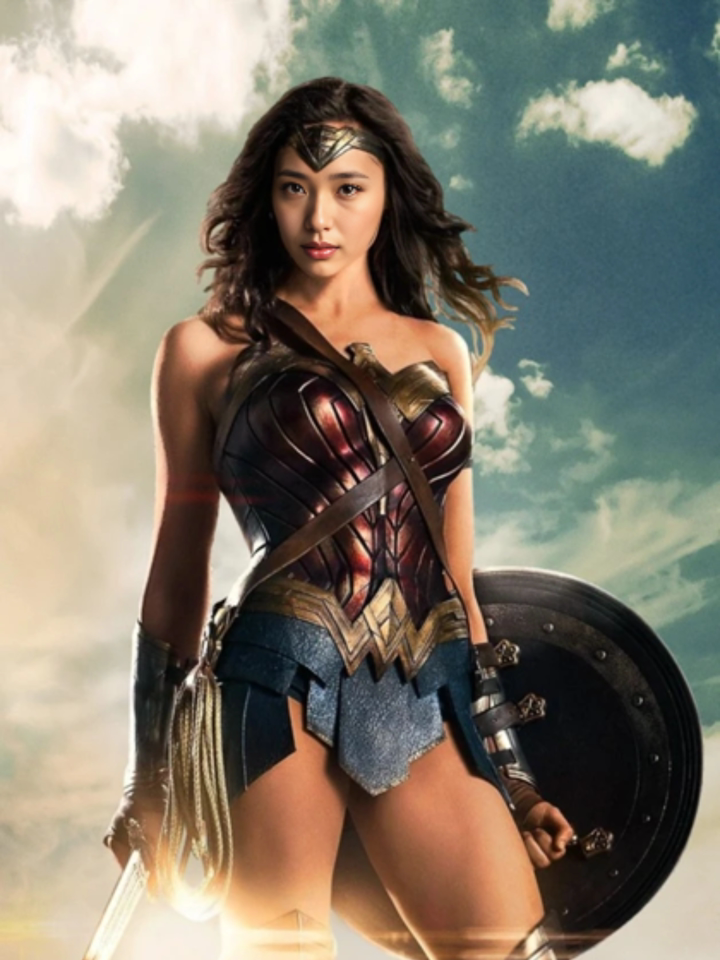
Face Swap
Place the user’s face onto a selected character or visual.
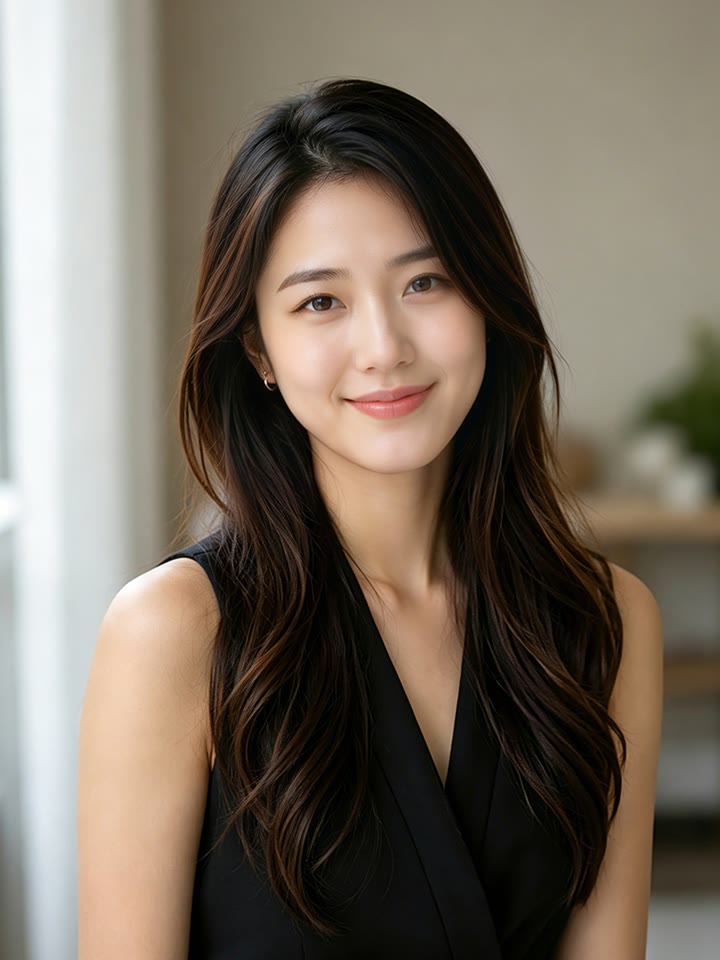
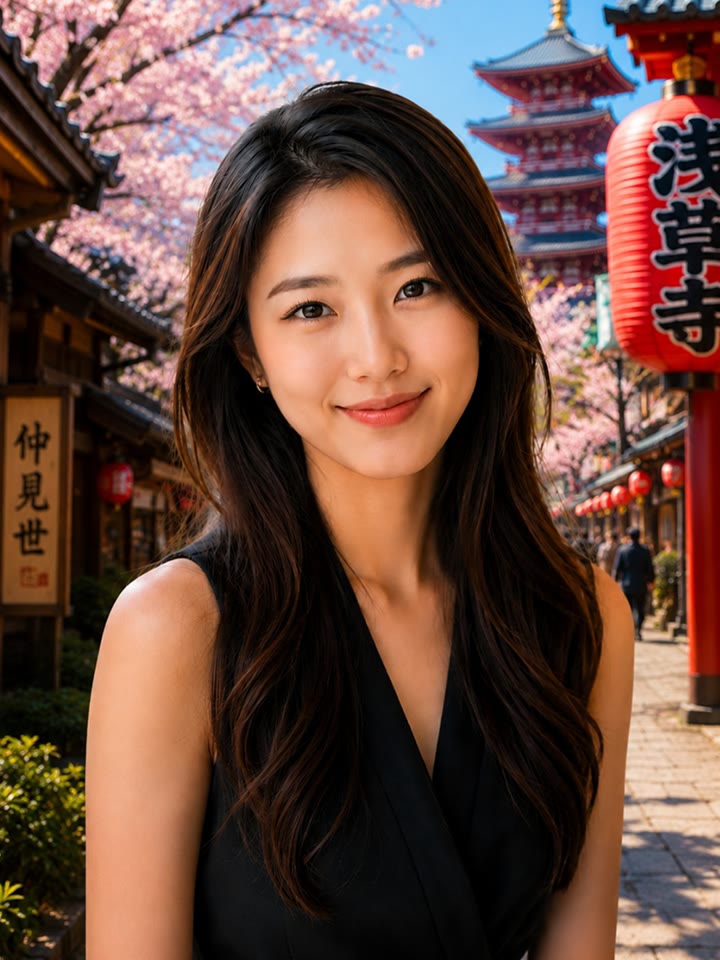
Customised Background
Transport users into branded, themed or imagined environments.
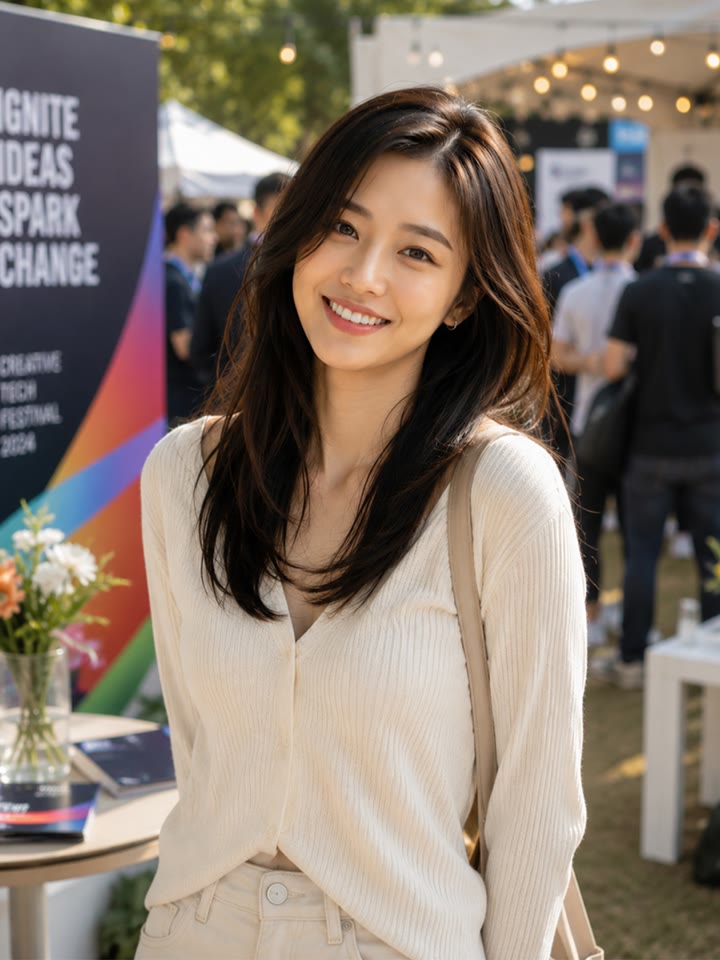
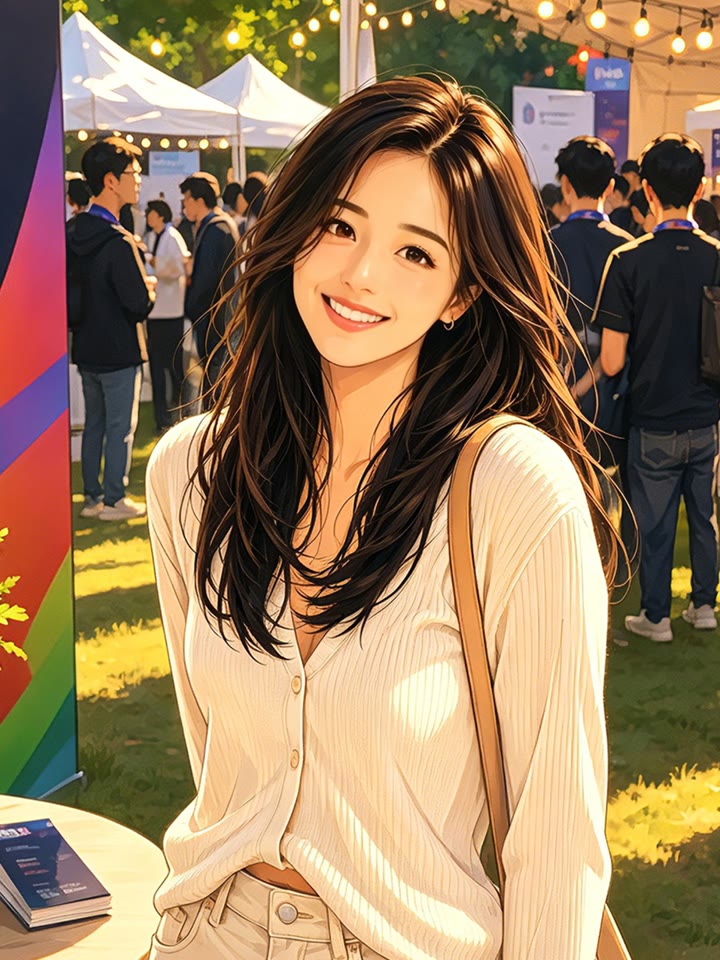
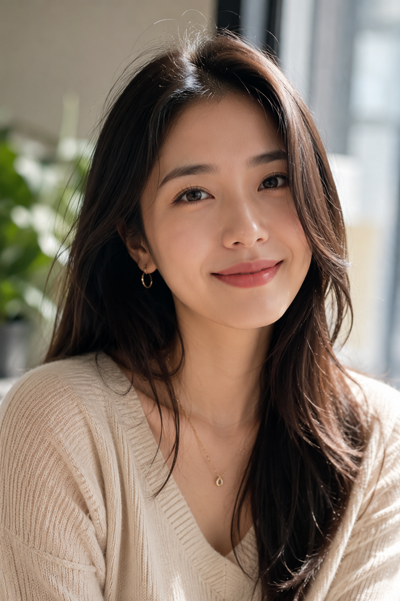
Customised Portrait
Transform photos into a chosen art style or visual treatment.
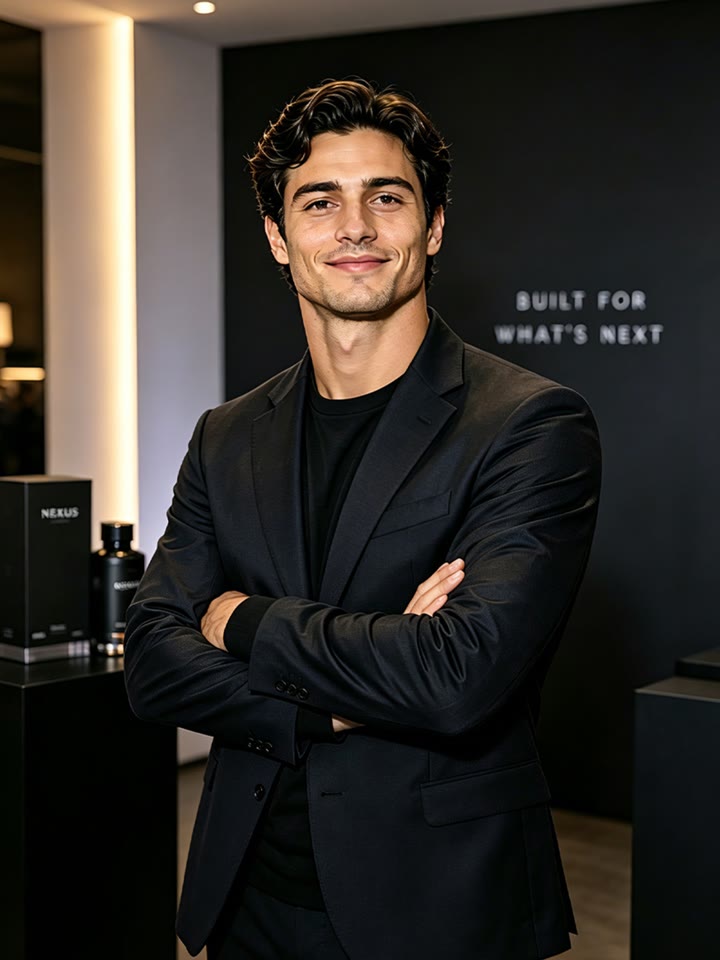
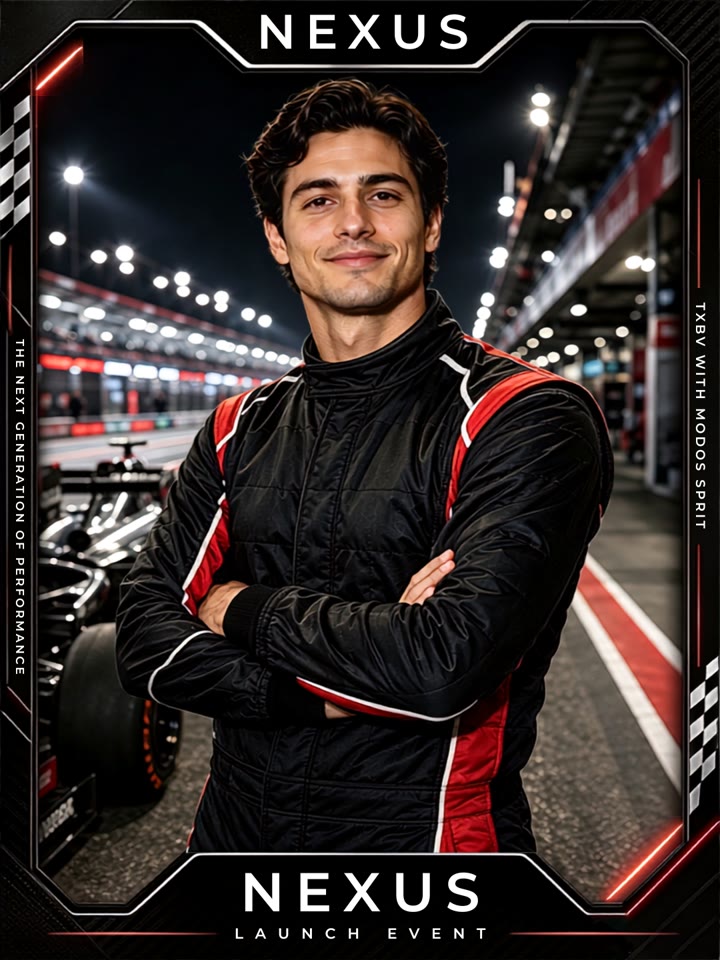
Branded Event Frame
Add campaign artwork, logos, event details and branded photo borders.
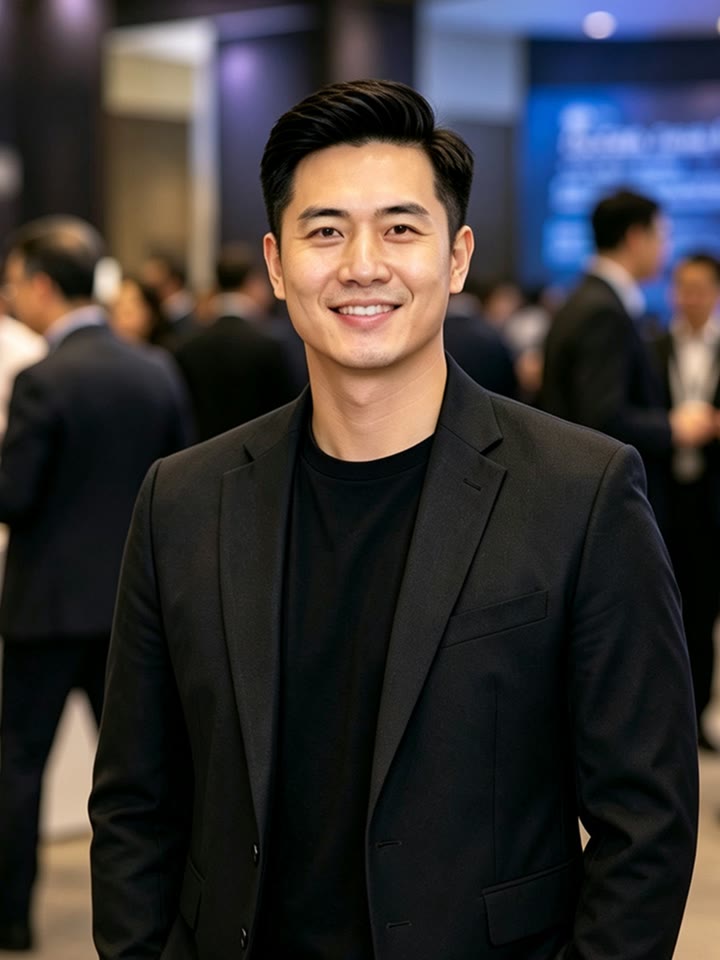
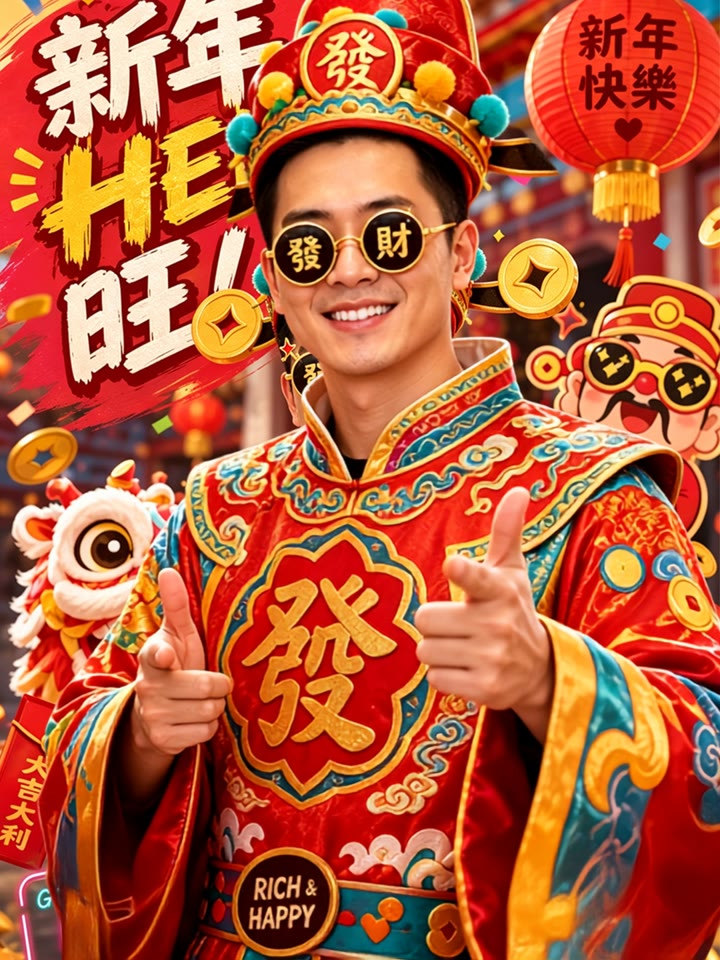
Festive Transformation
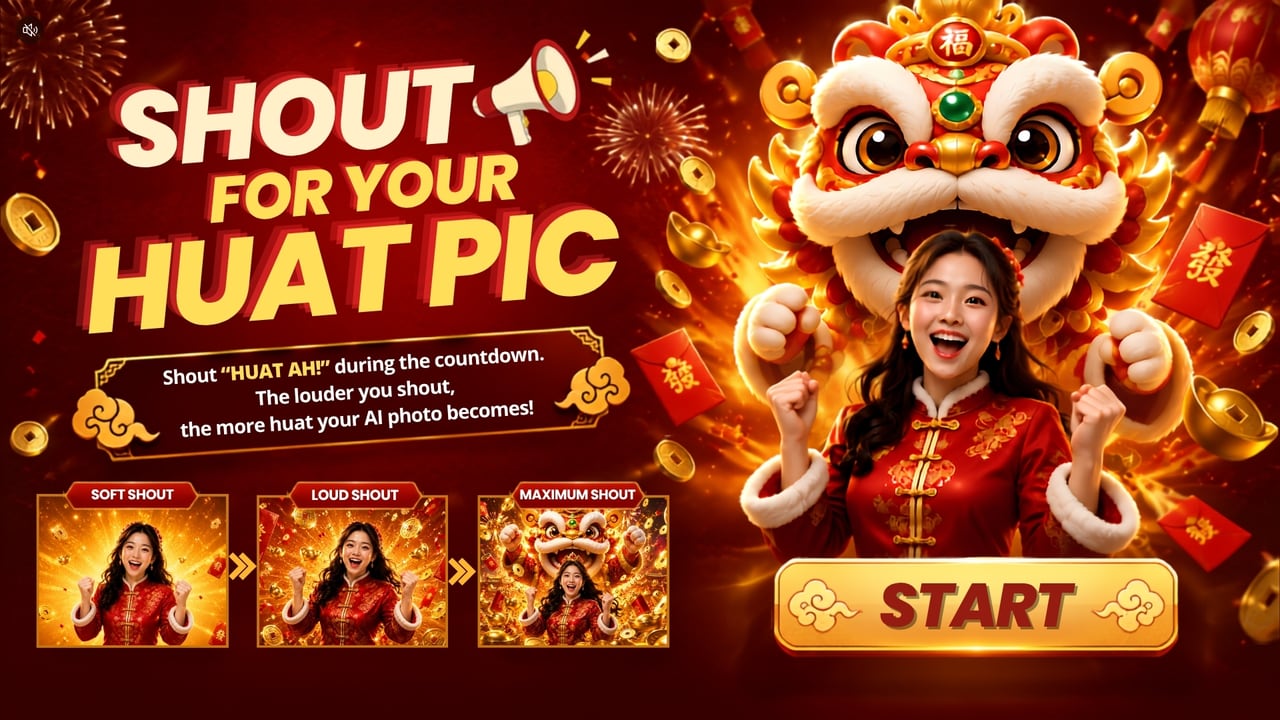
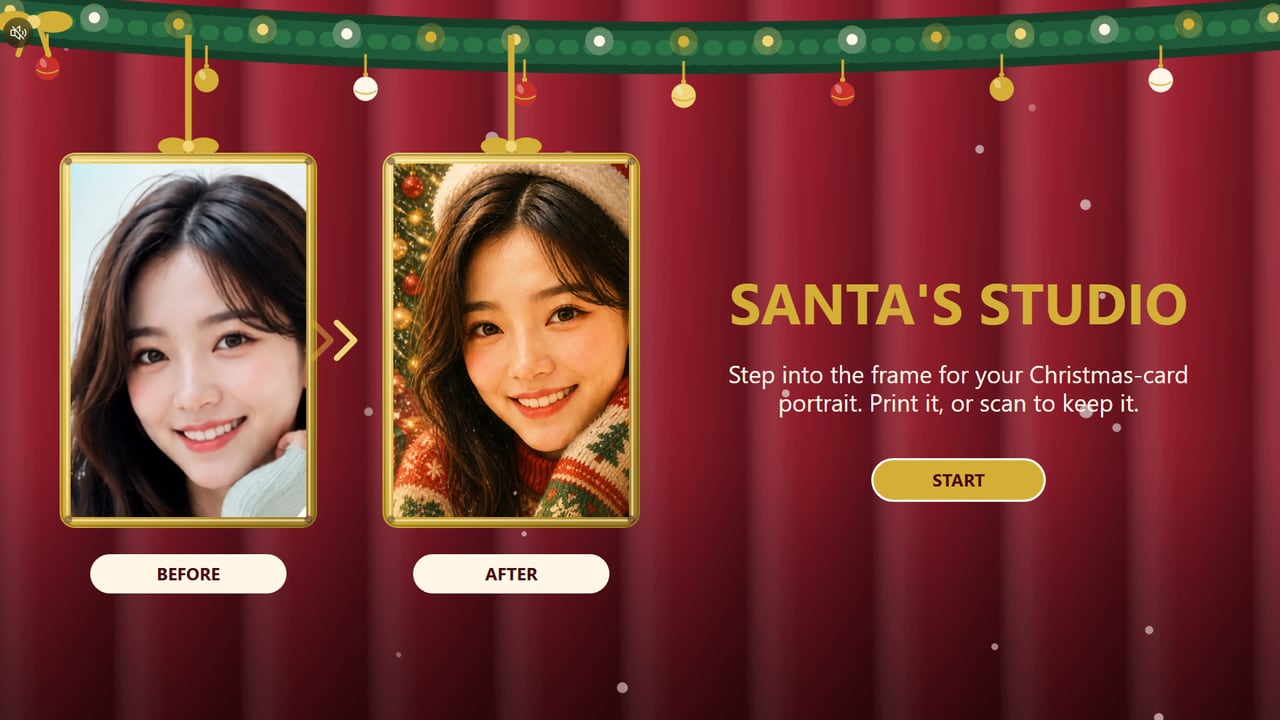
Create themed portraits for occasions such as Lunar New Year, Christmas or Hari Raya.
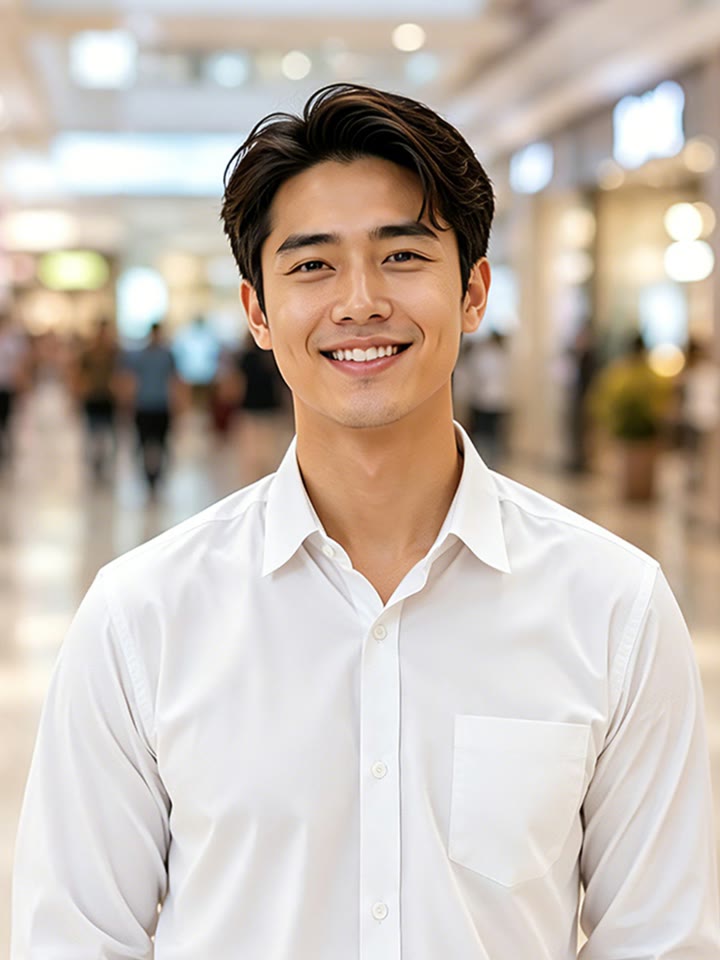
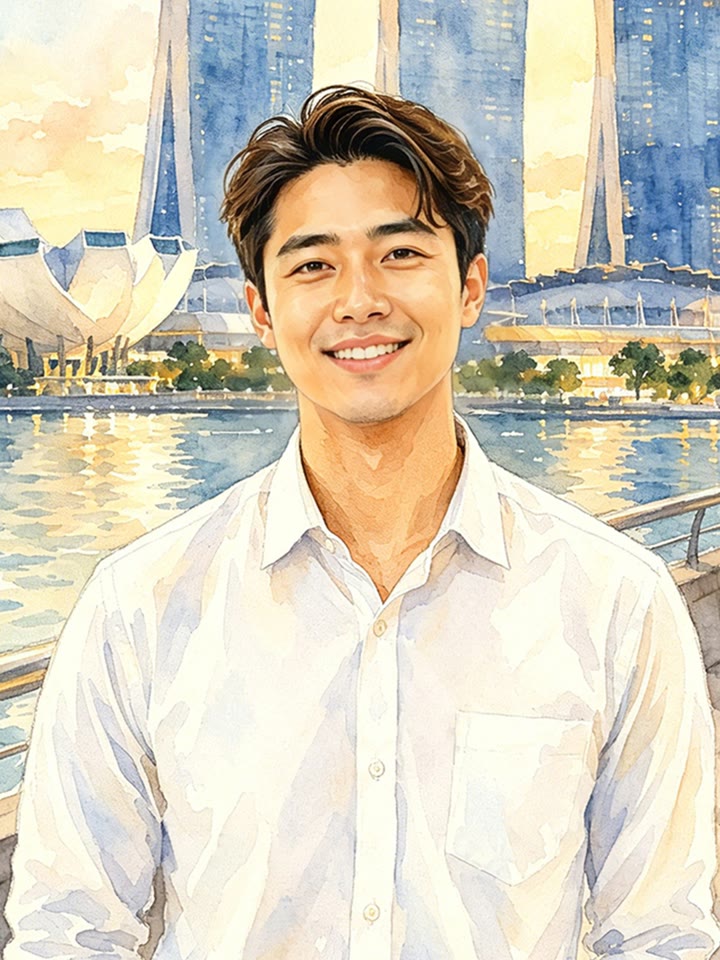
Location Transformation
Place users at landmarks, travel destinations or imagined locations.
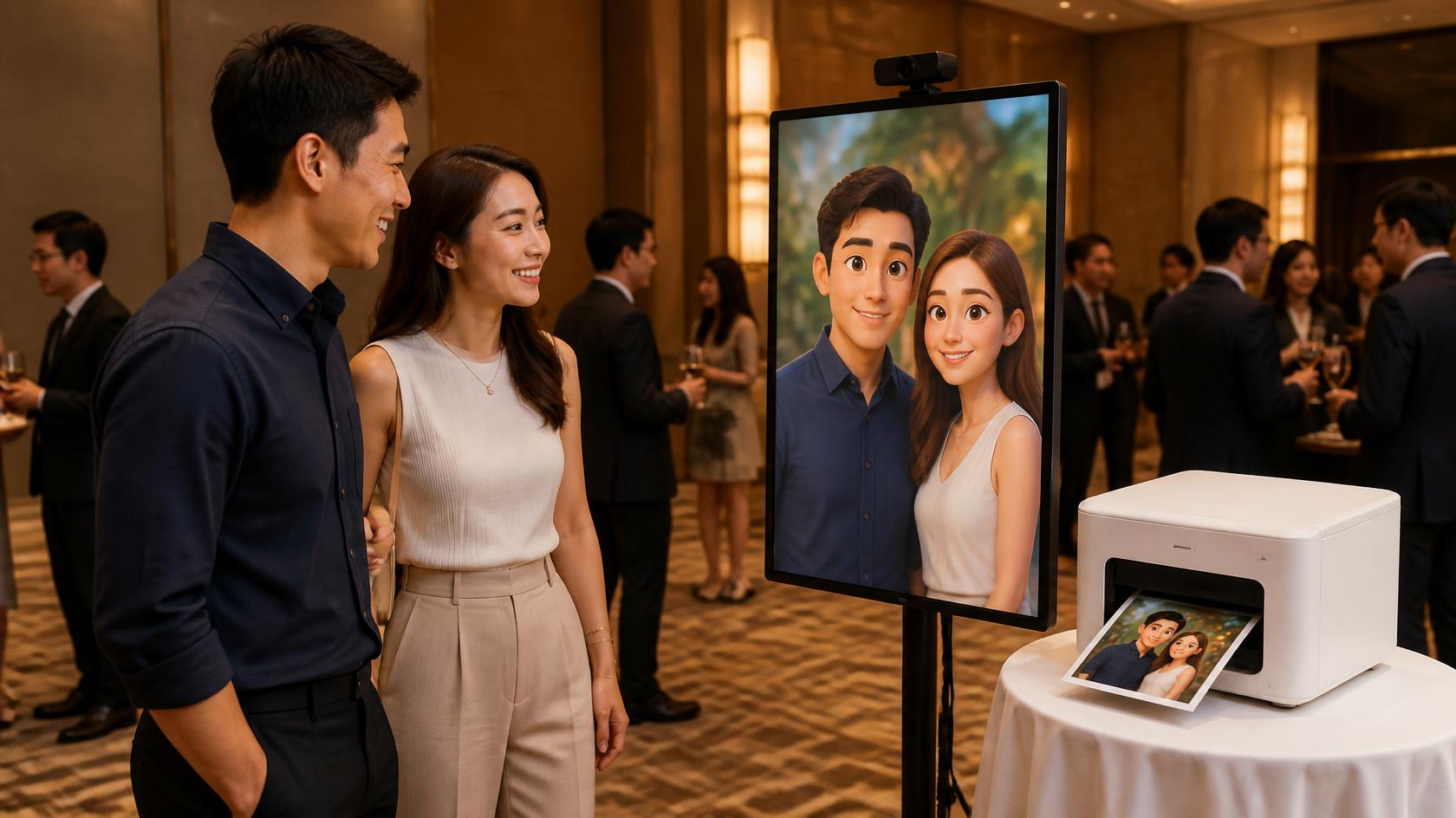
A Typical Event Setup
A portrait or landscape screen with the camera on top, and an optional photo printer beside it for prints on the spot.
How Guests Receive Their Photo
Flexible delivery options to suit any experience
 01
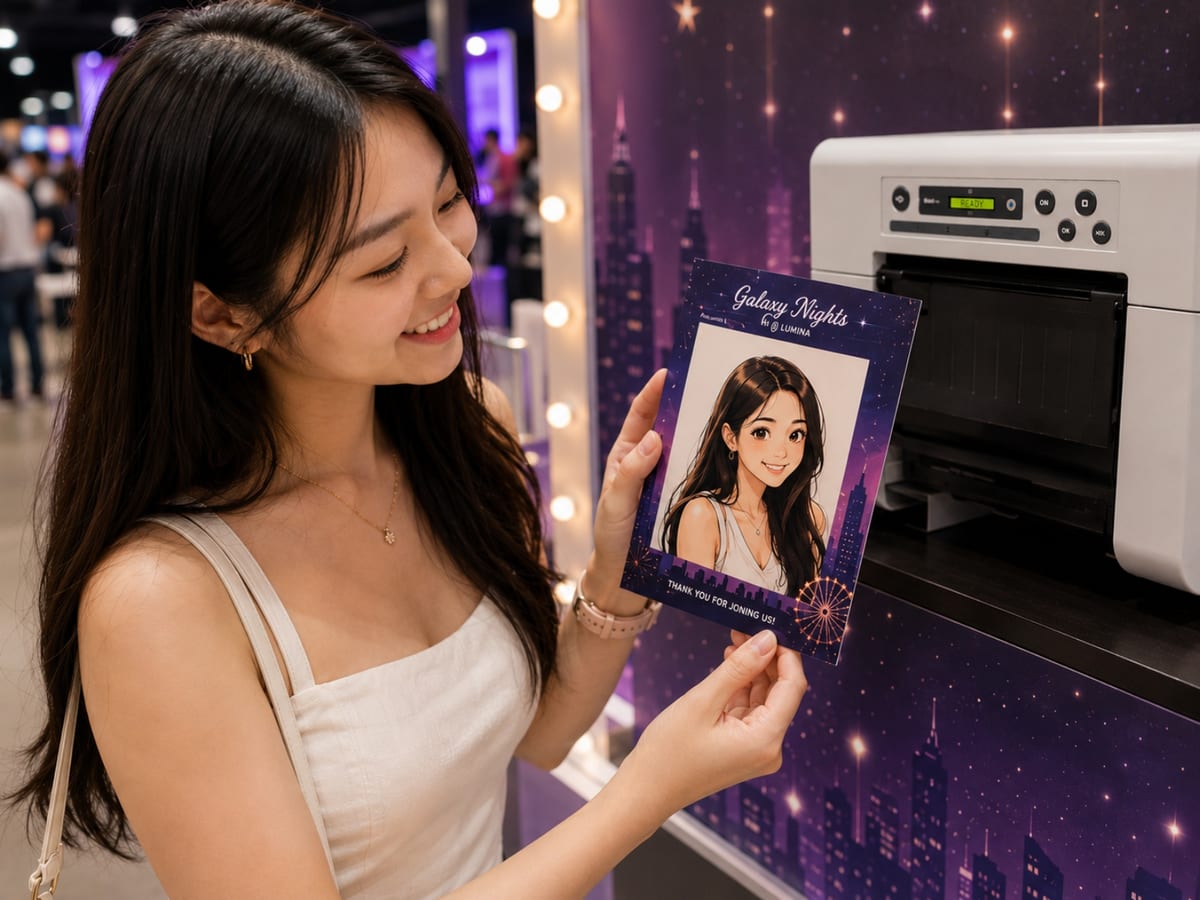
01Instant Print
Guests walk away holding the photo, seconds after it is generated.
- Various print sizes and layouts
- Customise frame
 02
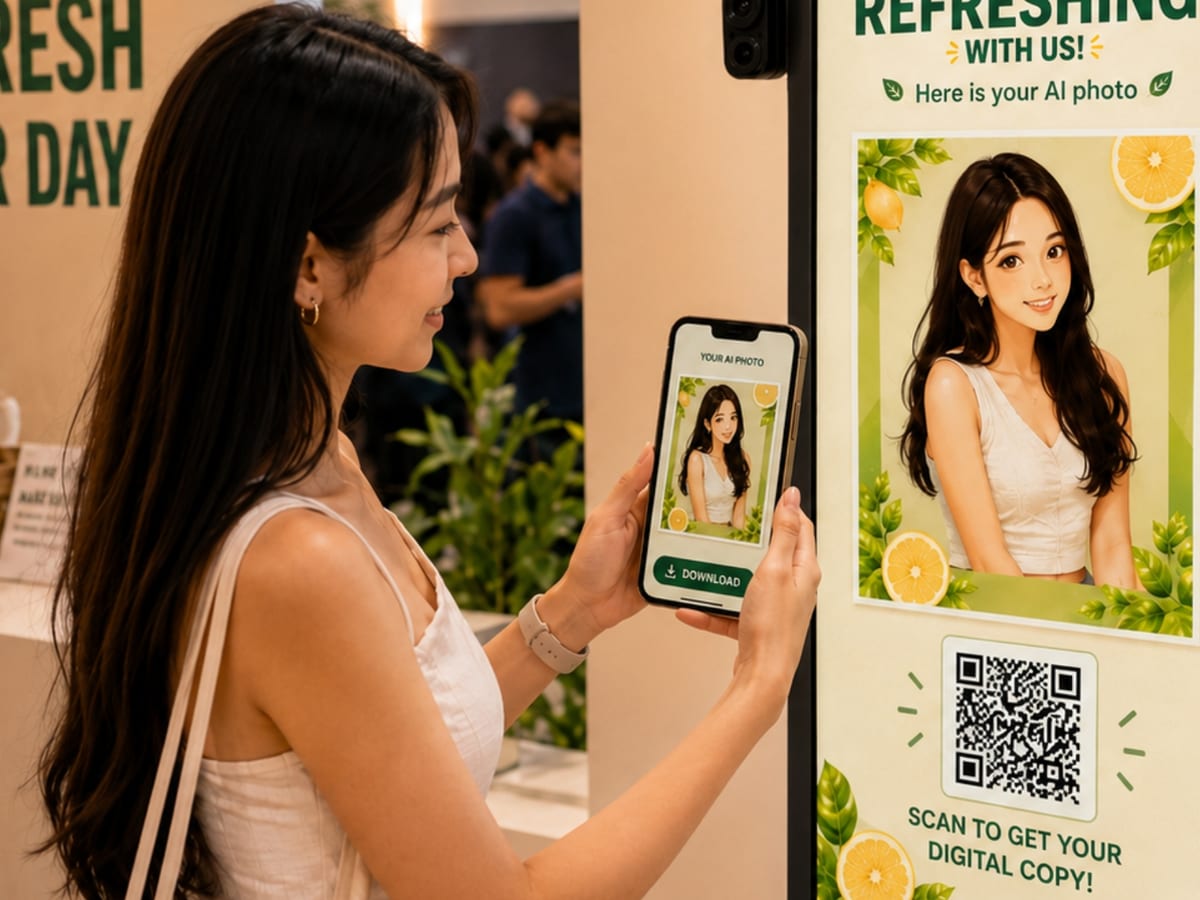
02Scan QR Code
Scan and the digital copy lands on their own phone.
- No app needed to download
- Opens on the phone, ready to save
 03
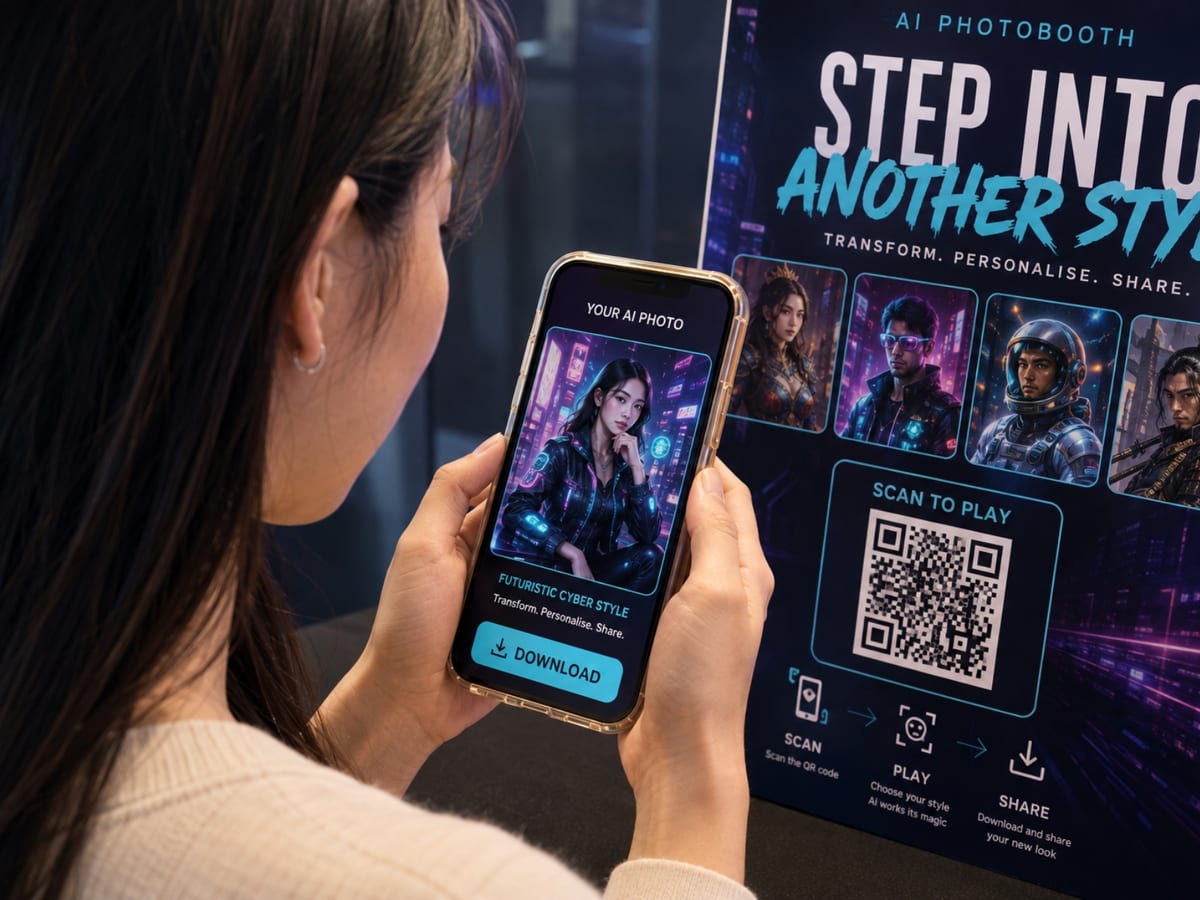
03Mobile Download
The whole photobooth on the guest’s own phone, no hardware.
- Nothing to set up or install
- Image downloaded to phone
| Instant print | Scan QR code | Mobile download | |
|---|---|---|---|
| What you need on site | |||
| On-site screen | |||
| Camera | User’s own phone | ||
| Photo printer | |||
| Paper and ribbon | |||
Estimate Your AI Photobooth Cost
Set the campaign length, image quality and setup to see an indicative cost.
What You Can Customise
The AI Style
Define Your Own Prompt
Create a 1920s Art Deco portrait with an emerald green and gold colour palette, elegant geometric details, vintage luxury styling, and soft cinematic studio lighting. Dress the guest in sophisticated period-inspired attire and place them in a refined Art Deco setting. Keep the guest’s face, facial features, skin tone, and overall likeness accurate and recognisable.
Upload a Reference Image
 Style
Style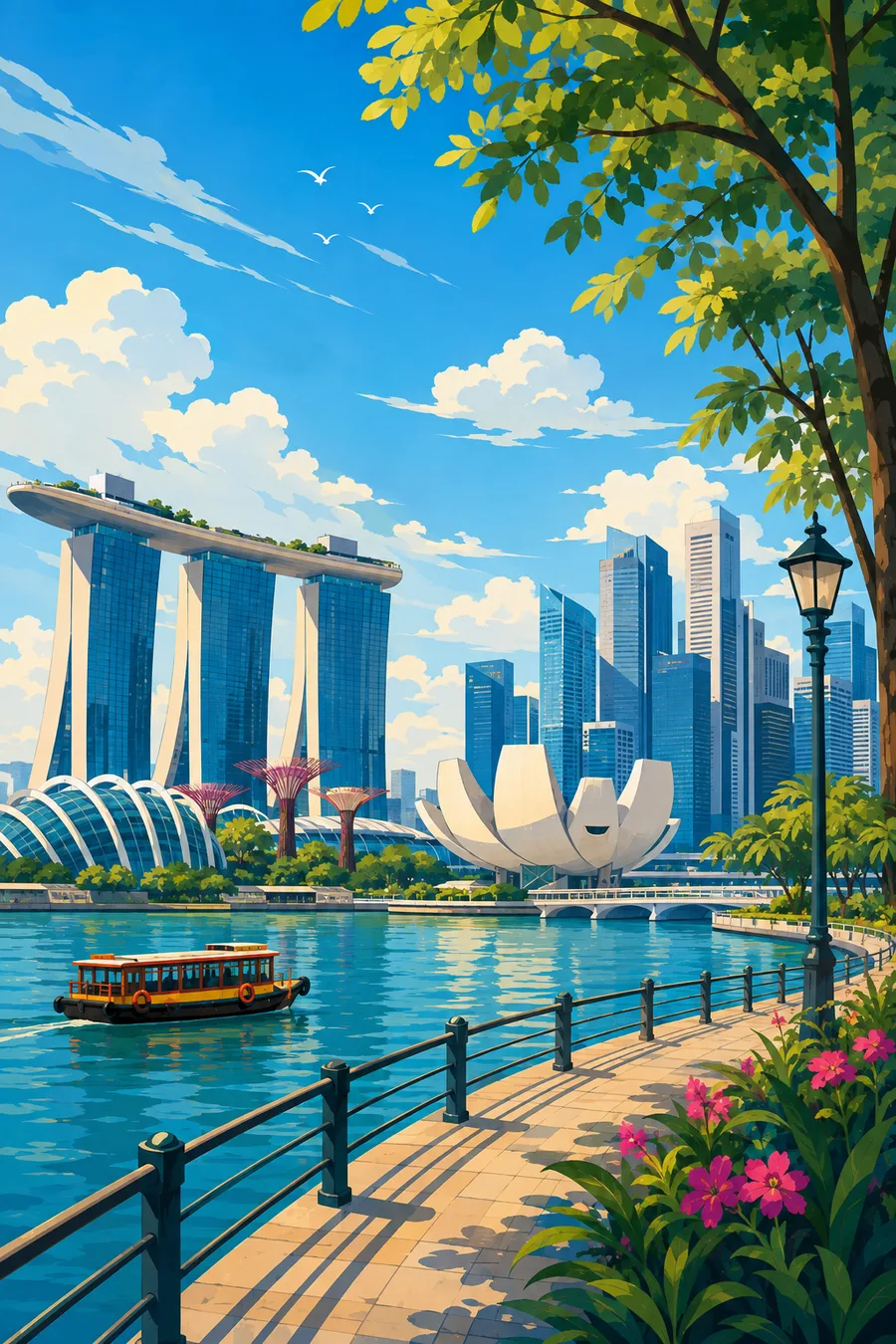 Background
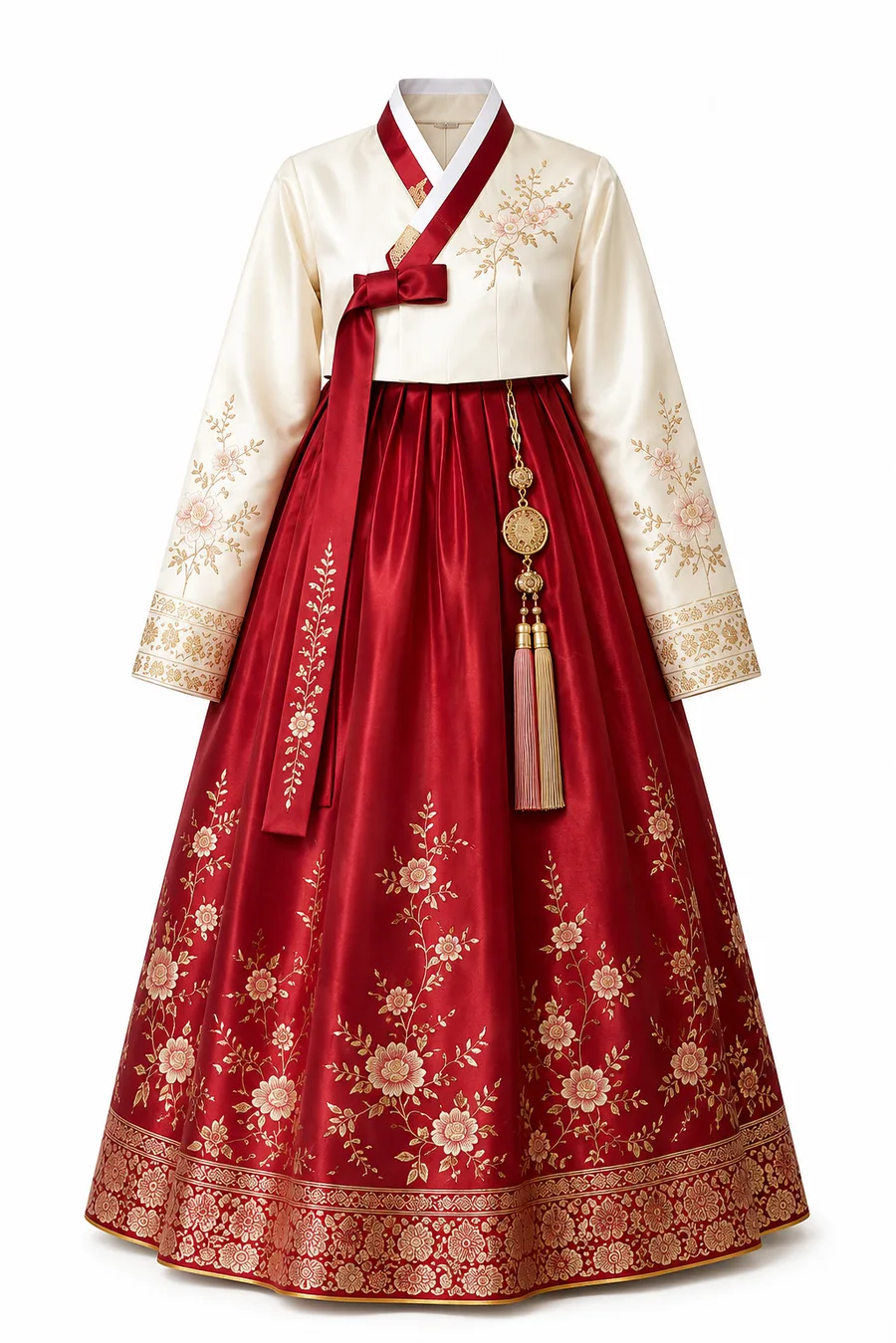 Outfit
The Standard Flow
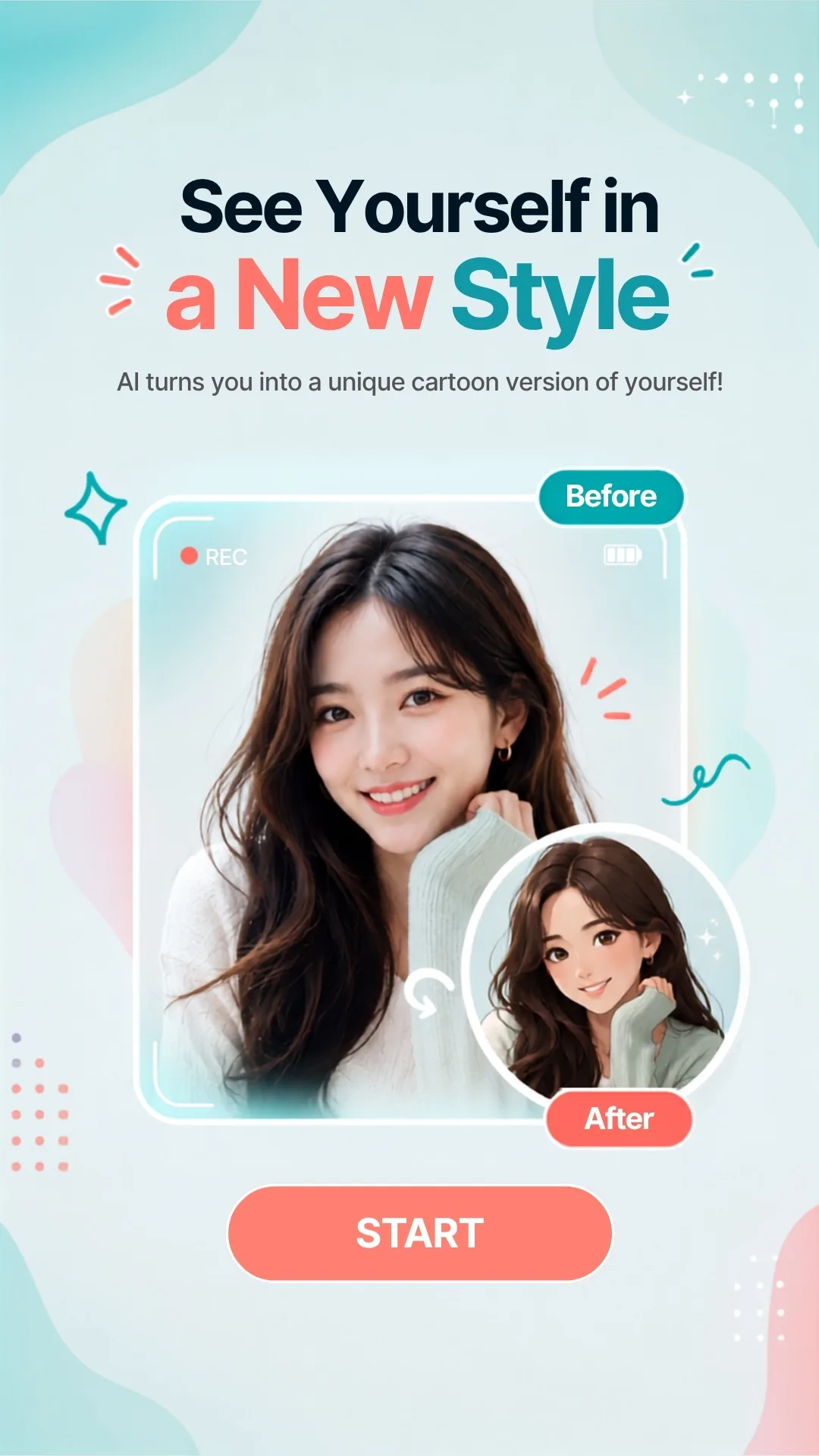
1. Welcome Screen
Customise background, visuals, text, logo and start button.
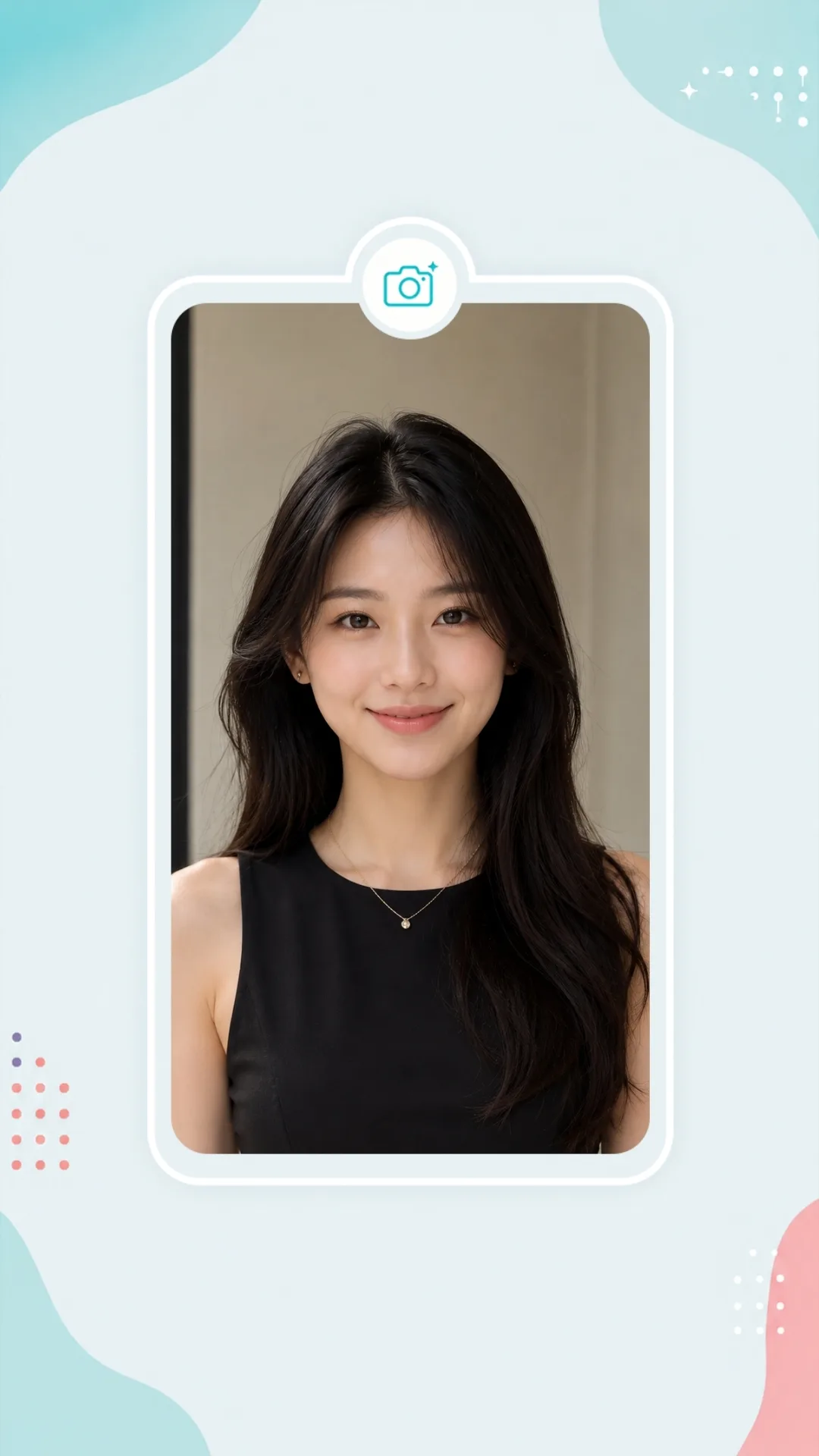
2. Photo Capture
Customise countdown, camera frame and on-screen instructions.
3. Loading
Customise the loading image shown while the AI works.
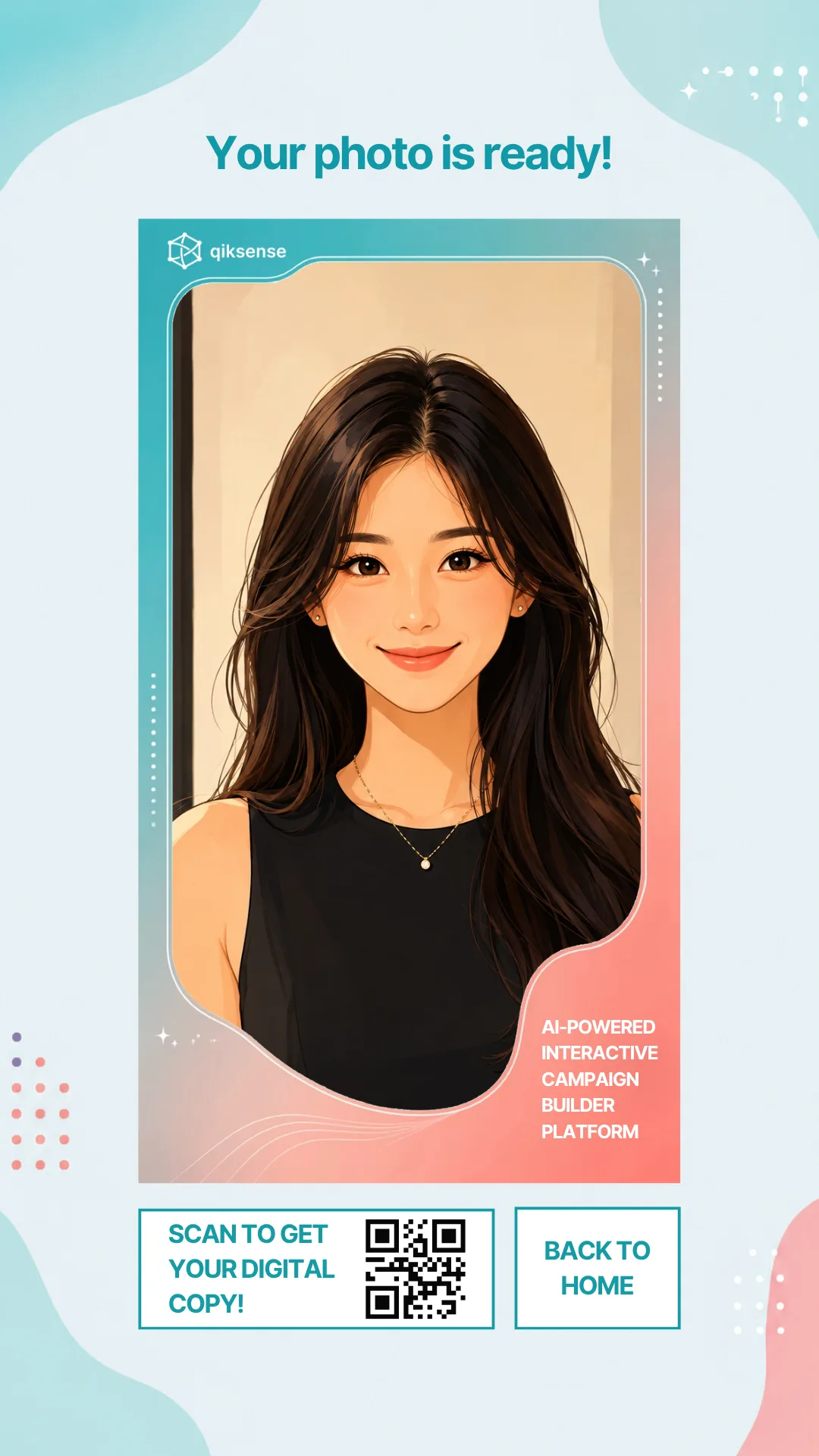
4. Generated Photo
Customise photo frame, artwork, logo, QR code and download button.
Add to the Journey
Collect Customer Data
Add an optional form for contact details or custom questions.
Consent & PDPA
Add your own consent and opt-in wording before data collection.
Gamification
Add a luck game such as Spin & Win, Scratch Card or Mystery Box.
Provide Rewards
Give vouchers, promo codes or draw entries after the photo.
What the AI Photobooth Can Do for Your Campaign
Attract and Engage Visitors
Create an interactive experience that encourages people to stop, participate and share.
Create Branded Content
Turn each AI-generated photo into a personalised campaign asset guests can keep and share.
Capture Participation Data
Add registration, consent or campaign questions before the experience, depending on your campaign needs.
Extend the Engagement
Connect the photobooth to rewards, lucky draws, vouchers or follow-up campaign journeys.
Where Brands Use It
Events
Create a fun photo experience and a personalised keepsake for guests.
Exhibitions
Attract visitors to the booth and encourage them to stop and participate.
Shopping Malls
Run interactive activations that draw attention and engage shoppers.
Retail Stores
Create an in-store experience that supports promotions and customer engagement.
Product Launches
Place users inside the product world and generate branded content they can share.
Roadshows and Pop-Ups
Bring a flexible, attention-grabbing experience to different campaign locations.
Frequently Asked Questions
No extra charge as long as your interactive campaign is built within 6 nodes, which the Plus plan at S$50 per Live Day covers. Each AI style that guests pick by hand is built as a node in your campaign journey, and a typical journey has room for 2 of them. Anything more requires more nodes and the Pro plan at S$80 per Live Day, which allows unlimited nodes. With Voice Control, one node can also hold 2 to 5 styles, picked by how loudly the guest shouts during the countdown.
Yes. A compatible photo printer can be added to produce physical copies alongside the digital delivery options. The print size, photo layout, campaign frame, artwork and accompanying copy can all be customised. The printer rental does not include prints; photo prints are S$125 per 500.
Yes. The print goes through the on-site device, so the printer must be installed on it, set as its default and loaded with the paper size you choose. Test it on the actual device before the event.
No. The experience runs through a web browser on a mobile phone, tablet, laptop or on-site digital screen. Guests can receive their image by scanning a QR code, tapping a download button or printing a physical copy, depending on the campaign setup.
Each campaign tracks performance such as engagement and completion rates. You can also collect contact details or responses to customised questions, with an opt-in consent statement included where required. Campaign data can be exported.
It depends on the AI model and image quality chosen for the campaign, so run a few test photos on site before guests arrive. The pose countdown before the capture is customisable, so it can be shortened for high-traffic activations.
It works best with one person per photo. Group shots are possible, and a costume or style can be applied across everyone in frame, but facial resemblance drops as more faces are added. For queues and high-traffic activations, solo shots are recommended because they generate faster and look closer to the guest.
Yes. The experience runs in a browser and the AI generation happens in the cloud, so a stable connection is needed throughout the activation. Venue Wi-Fi is usually enough, though shared event Wi-Fi can slow down when the hall is full, so a dedicated mobile broadband line as backup is recommended. If the venue cannot provide a reliable connection, we can provide mobile Wi-Fi at an additional cost.
Immediately. The finished photo appears on screen as soon as it is generated, and from that screen guests can print it, scan a QR code to save it to their own phone, or tap download if they are already on their own device.
Build Your AI Photobooth Campaign
Set up the prompt, style the screens, and launch online or on-site.